Buy anything from 5,000+ international stores. One checkout price. No surprise fees. Join 2M+ shoppers on Desertcart.
Desertcart purchases this item on your behalf and handles shipping, customs, and support to Croatia.
🎨 Elevate your digital artistry — don’t just create, captivate!
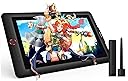
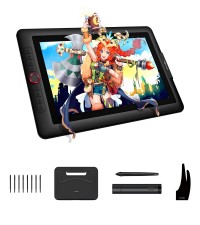
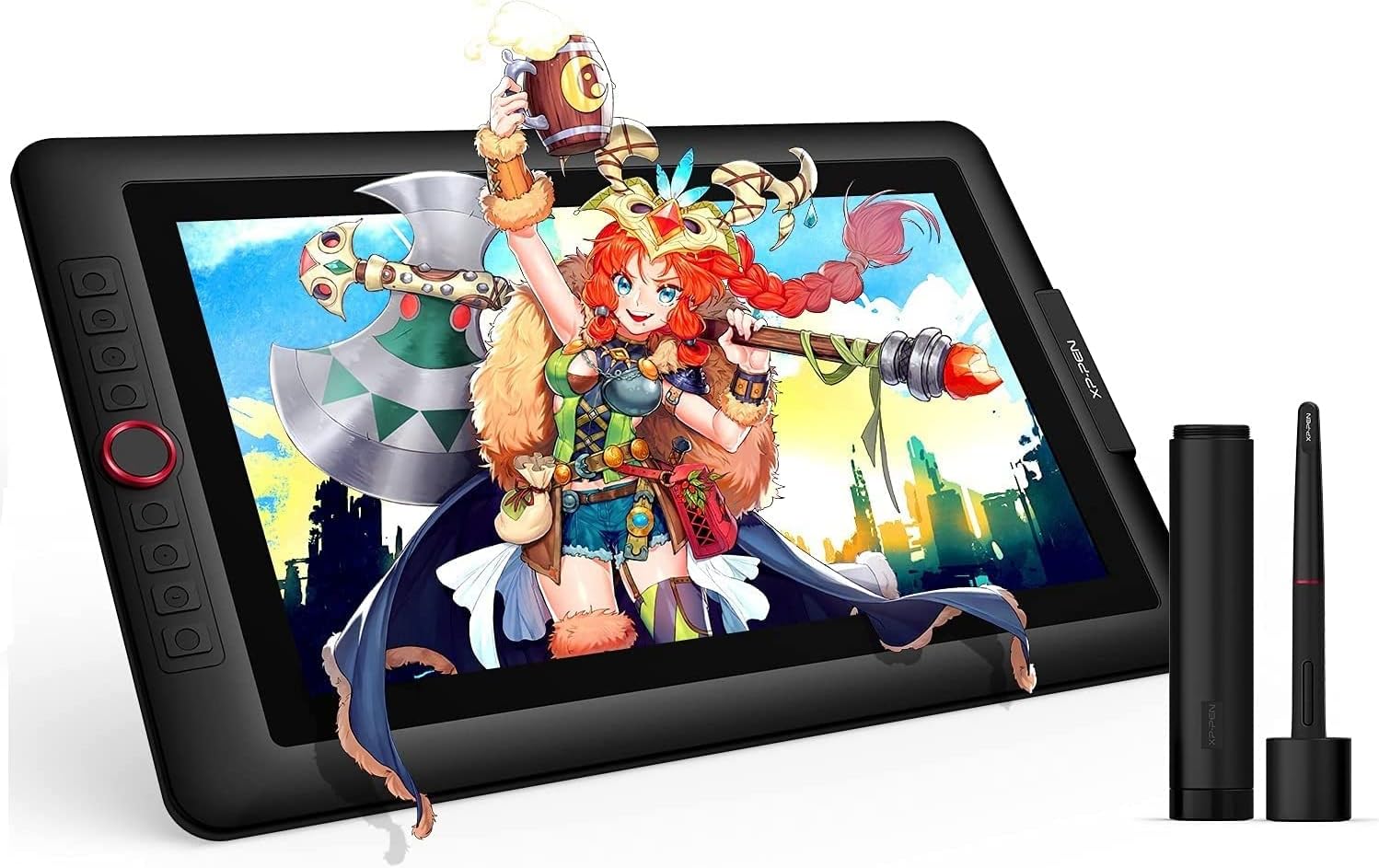
The XPPen Artist 15.6 Pro is a professional-grade drawing tablet featuring a 15.6-inch full HD full-laminated IPS display with 120% sRGB color accuracy, 8192 levels of pen pressure sensitivity, and 8 customizable shortcut keys plus a Red Dial for enhanced workflow. Designed for seamless compatibility with major OS and creative software, it offers a sleek, ergonomic design with adjustable brightness, making it the ultimate tool for digital artists, designers, and remote professionals seeking precision and vibrant visuals.


| ASIN | B07M5X7MH1 |
| Active Surface Area | 13.55 x 7.62 inches |
| Additional Features | Stylus |
| Best Sellers Rank | #6 in Computer Graphics Tablets |
| Brand | XP-Pen |
| Built-In Media | Cleaning Cloth, Glove, Pen Holder, Stand |
| Color | Red |
| Compatible Devices | Windows 7 and above, Mac OS 10.10 or later, Linux, Chrome OS M88 or later |
| Connectivity Technology | DVI , HDMI , USB |
| Customer Reviews | 4.6 out of 5 stars 7,627 Reviews |
| Display Type | LCD |
| Item Dimensions L x W | 8.79"L x 13"W |
| Item Weight | 3300 Grams |
| Manufacturer | XP-PEN |
| Mfr Part Number | Artist 15.6 Pro |
| Model Name | Artist 15.6 Pro |
| Model Number | Artist 15.6 Pro |
| Native Resolution | 1920x1080 |
| Operating System | Windows 7 and above, Mac OS 10.10 or later, Linux, Chrome OS M88 or later |
| Pressure Sensitivity | 8192 Levels |
| Screen Size | 15.6 Inches |
| Special Feature | Stylus |
| Specific Uses For Product | Drawing/Learing/Remote working |
| Target Audience | Teacher |
| UPC | 654913039536 |
| Unit Count | 1.0 Count |
| Warranty Description | 12-month warranty |
S**H
Personally, zero issues. Great for the price.
So, to start, I've seen a number of reviews that said they were completely unable to make this work with a multi-monitor set up, but I found this to be false in my case. I have two regular monitors, and this acts as a third. It took a bit of work, but I finally found the way to set it up properly and have had zero issues since then. There was only a really, really tiny scratch on the screen (which I think was my fault, but I have no memory of if it was on there before I peeled off the plastic or not, and it's only able to be noticed at specific brightness levels and angles, and has no impact on functionality or detection). I purchased this in February of 2019 though, so maybe earlier products had some issues that mine didn't. In terms of technical functionality, I use Krita with it, and the detection, tilt support, etc. of the display worked great once I set Krita to use the proper amount of RAM. For Krita at least, there's definitely an issue with detection if the program has restrictions on how much RAM from your computer it's able to process, it might seem like the detection of the display isn't that great, but it's possible that it's actually the above-mentioned RAM restrictions, so if you're having trouble like I was, try to check for that and adjust them to something suitable for your computer's specifications. As I said, after I diagnosed that it had nothing to do with the display, I've had no issues and haven't had to adjust a thing. On to the actual user experience of it, it's very simple to set up (if you have multiple monitors, you might have to put in a bit more effort), and you can pretty much plug it in and go once the driver is set up. The length of the HDMI cord it comes with is decent, so unless you have a behemoth of a workspace, you should have plenty of length to position the display wherever you'd like. The weight of the pen definitely comes down to personal preference, but as someone who prefers the weight of something like a nice ballpoint pen, it feels perfect. The display itself has a good weight to it, so it doesn't feel so light it'll slide away if you put any pressure on it, but it doesn't feel so heavy that it's unpleasant to have it sitting in your lap for long periods. It also doesn't generate a lot of heat either like a laptop or tablet might, so again, it's great for long drawing periods or using it to take digital notes for studying or other academic/creative tasks. My only criticism here would be that the stand that it comes with really only has one, single resting position, so depending on how you like your drawing medium to be angled while you work, definitely look in to getting a display that has multiple locking positions. All in all, despite what some of the reviews say, my experience with this has been virtually flawless, with most issues either being outside of the tablet, requiring some minimal effort to fix, or being so trivial that it doesn't have an effect on experience or functionality. For the price it's at, I highly recommend this display.
M**N
Great value
I don’t know what to say other than this thing is a lot of fun. My daughter (8) loves to draw and has been asking for something like this. I bought it so she can finally translate her talent directly to a digital canvas. After buying I read through the negative reviews and said great what did I end up actually buying. I decided to surprise her and get this tablet connected to an old laptop of mine. Despite what the reviews say, it wasn’t that hard to set up. If you ever spent any time installing a printer, program, or driver it was basically the same thing. I downloaded the driver for this machine (Win 10) from the manufacturers site. Installed the driver, connected the cables to the pc, plugged into the tablet, powered it up and it immediately recognized. The website promises free software but I urge you to ignore that. The software is all junk. I wasted 30 minutes on that so you don’t have to make the same mistake. Download Krita if you don’t plan to use this with Photoshop or something similar. It seems to be the best free software followed by GIMP. A quick google search will point you in the right direction. Within a few minutes of screwing around I made the image attached in Krita. I am not an artist by any means but I had a lot of fun messing with this. The pen is responsive, has two customizable buttons and does great with the screen and pressure changes. It also has 8 customizable buttons and a scroll wheel. Overall in the short time I spent with this I am satisfied. Tomorrow I will probably install in on my desktop to see how it pairs with Windows 11. If I run into issues I will update this and also again later after some time using it. This is a fairly sturdy unit for the price. Same goes for the pen and stand. Mine is the 15.6 and it is pretty large in person. Much bigger than I expected. I would buy again though. Note that - A pc is required and this is not a tablet in the traditional sense. -There is no battery -It is dependent on a WIRED connection to the computer you are using. -it does not have built in software or any interface. Literally mirrors your computer screen but you can draw on it. Set your expectations and you should really wnjoy this.
B**E
Amazing tablet for people new to pen displays!
I’ve finally upgraded from my janky old android tablet to this xp pen one! At first when I ordered it I thought it might’ve been too small being only 12 inches but truly it’s to most perfect size for a person who’s new to pen displays! I’m used to my 10.4in android anyway so it works for me! The setup was really easy! It took me less than ten minutes to set up and it worked perfectly. All the side buttons are customizable and you and set certain button setups for different apps which’s I thought was really neat! The pen I personally love so much it has like a soft silicone feel to it which I really enjoy. The pressure works great on the pen and tablet and I did mess around with the pen pressure settings to my liking. The screen brightness is adjustable on the side of the tablet which was so nice instead of having to dig into the driver settings! All the buttons work great, the red dial is so useful you can use it to zoom, change brush size, scroll, rotate etc. I love how customizable this tablet is it’s so so nice. It connects to my computer perfectly fine , my only complaint is my colors are a bit saturated but that’s fine, as they aren’t off completely so it’s not bothering me so much and I bet there’s a fix to it anyways. Also there is a cable you have to connect it with which I knew , it’s just a lot of plug ins which it doesn’t bother me much but it could bother others. Overall I love this tablet so much and can’t wait to create some awesome art work with it! - note my friend has the 15.6 pro and she said it also works amazing it’s just it’s big. So make sure you check your desk space to make sure your tablet can fit on it!
E**N
Few nitpicks/quirks but overall an excellent choice
So I've had this product for probably six months now and overall, I do really enjoy it. It's an amazingly affordable alternative to the wildly expensive cintiqs, and frankly it does everything I need it to do and then some. There's so many buttons on this thing I actually ran out of things to map them to! The pressure sensitivity is great, the colors are accurate, and I really love working on it. It functions like most tablet monitors on the market, which is to say you do need to calibrate it every time you sit down in order to make sure your cursor actually lines up with the tip of the pen. This is because the glass has some thickness to it, as is very common in conventionally-available tablet monitors these days, so there's some parallax. My only real problem with this is that the UI of the drawing program I use (Clip Studio) only appears in whichever monitor is designated "monitor 1," and EX-Pen's software will only allow the calibration to appear in whichever is designated "monitor 2." I have searched high and low online and contacted their customer support to no avail as far as seeing if this can be changed. So every time I need to calibrate it, I have to open my settings, change the monitor of my laptop to be "monitor 1," set the tablet area in the XP-Pen program to be "monitor 2," do the calibration, then change the tablet to be "monitor 1" again, and THEN set the tablet area in the XP-Pen program to be "monitor 1." It's the single most frustrating thing about this device, and it makes what should be a ten-second process take like three minutes. So if you're a Clip Studio user...be aware of that I guess. It's obviously not the end of the world, nor does it impede the overall usability of this monitor, it's just super annoying and I'd really like the manufacturers to fix it in a software update. This is also a little bit of a nitpick, but the display does not get super bright and the anti-glare coating is not very strong. I actually prefer a weaker anti-glare coating myself because those nano-textured things tend to mess with colors, but the fact that the display can't get brighter to make up for that is a little annoying. I prefer to have natural light in my room so during the day I have my blinds open, but I have to close them if I'm using this monitor at certain angles because it impedes my ability to see what I'm working on. I've attached a photo of how strong the reflection from my window is, and the sun isn't even shining into my room. To give you an idea, in all three pictures where the monitor is on, it's at max brightness. I will be honest, though, those are very minor problems compared to other tablet-related nightmares I've had from other companies. Overall this product is spectacular, gets the job done well, doesn't require me to be heavy-handed to get good lines down, and most importantly displays my colors very accurately. At the end of this day, I would highly HIGHLY recommend this product over other similar-priced or more expensive tablet monitors, and I hope the feedback I've provided will make the next generation of these beasts even better.
R**N
From First Stroke to Final Poke
This has been great, overall an amazing product. I had some issues with the first one and a dead pixel; the manufacturer made it right, and either way, it would have been tough to stop using it even with the defect. It makes me want to draw, to paint, to colour, and to engineer. I had always done so much hand, or on the computer with a soulless faceless no-screen tablet, and it was... what it had to be. But switching to this, the size has been awesome, I can free sketch, browse the pages in between work sessions, load it into my DAW when I am making music, and literally do all my adjustments on the fly by touch, it was something I didn't think I needed until I had it, and boom, I love it. Very Responsive on the touch side, the zoom knob, and rotate is nice, heck, I didn't realise on the computer how nice having that rotate would be... do I wish it always made it back to 90° without having to force it? Yeah, that would be awesome, and I can probably adjust a setting to do that, just haven't yet. The ability to adjust the angle is wonderful for however I am sitting, the tactile of the screen is more like a soft hard, not a slick hard, a matte plastic feel, so it doesn't feel slick like some screens. Overall, a great purchase. Set up to draw my first smiley face? Probably something like 15 minutes, and part of that was due to a dirty desk, if you are on the fence, I'd say give it a shot, you might find yourself doing much more, and doing much better than you would have imagined.
T**D
An Excellent Drawing Experience
I want to start off with stating the fact that I am NOT an artist. I am new to drawing and my review is based on the perspective of a first time user of this kind of product. Before I jumped into the world of screen tablets, I had done a lot of research on what to look for in a screen tablet, that is colors, gamut / sRGB, as well as performance, and in some cases, which seems to be quite subjective, how it "feels" when drawing. After watching dozens of reviews of this and other tablets on YouTube, I settled for the XP-PEN Artist 15.6 Pro because I liked the way it looked and I liked its features such as the programmable buttons and dial, and all of the accessories it came with including a stand, a glove, a many-to-one USB-C cable which helps reduce clutter on my small desk and a programmable pen that doesn't require a battery. I also liked the price at the time of $399 (plus some big discounts I got from Amazon) which really helped since, as a non-artist, I had no idea if I'd be using it beyond a test to see if I liked it. The pen-to-screen performance is very nice, it's responsive and has over 8000 levels of pressure sensitivity, I can just say that it feels pretty "natural" to draw with the pen on this screen. I like it a lot. Also the resistance of the pen-to-screen is really nice. It doesn't feel "slidey" like drawing on a phone or tablet (computer) screen, but it also doesn't feel too rough like drawing on paper. I would say it's closer to paper than a phone screen, but the pen glides well and provides just enough resistance to make it feel natural. The colors are very rich and beautiful. I am seeing color saturation on this screen that my actual monitors don't display, or don't display well. In fact this tablet screen is much nicer than all three of my monitors and I'm sometimes tempted to use it as a fourth screen for general use. It's great that all of this is coming from a single USB-C connection which splits into a USB, USB-Power and HDMI. The tablet itself is surprisingly very very light weight. For a moment I was worried over build quality because when picking it up, it felt "cheap", but once I set it up, including the "cheap" feeling stand that it comes with, it all felt good, very sturdy and in fact it started to feel like a quality product. Being able to easily pick this up with little effort and move it around is actually a nice bonus to me. Don't let the lightness fool you, this is a solidly built product. One of the things I worried a lot about was heat when using a screen on my desk, and close to my face. I find the heat uncomfortable and often times I get sick when it's too warm. This is NOT an issue here, I have yet to feel any noticeable heat dissipation from this tablet. This was a major surprise. I spent hours using this tablet with both the single angle the included stand provides, plus the lack of heat dissipating, and I was pretty comfortable the entire time. And speaking of comfort, it comes with brightness buttons to turn up and down the brightness without sacrificing image quality -- my eyes have adjusted well to about 75%. For an entry level tablet, for someone like me, I would say this is perfect. I am having a lot of fun drawing on this, and this is from someone who does 3D modeling and always avoided 2D drawing. Attached is an original character for my Graphic Novel that I've drawn with this very tablet. It's my first ever drawing with a screen tablet and the first one I've drawn since the 90s, after spending the last two weeks watching drawing tutorials and then applying what I've learned to 2D art. I don't want to imply that non-artists like myself can just pick this up and create something nice right away, but as a 3D modeler, I already have a sense of proportion and perspective, as well as having an eye for lighting and shadowing, so I've applied what already know rather quickly using my 3D model as my base image. For the moment (since I only had this for two weeks), this is a 10/10 quality product that I would 100% recommend to anyone looking to get into digital art. It's great for the entry level person, but I'm sure pros would like this as well.
C**E
Call chat support when you set up
I had a pretty hard time figuring this out at first. I'm pretty new to digital tablet art so I was taking it slow and reading the manual and I still couldn't figure out what to do. So I went to their website and under support I think it showed me how to connect to a USB on laptop or a computer. The hdmi cord goes from tablet to your monitor hdmi port. Then I finally saw my desktop on my new tablet and was amazed at what was happening finally. So in desktop I use pentablet tools mouse mode. Turn on a good art app like sketchbook or anything and then turn mouse mode off. The pen was jittery and crapoy and I was immediately not liking this tablet lol. I chatted with a support person. They said did I download the driver software for the pentablet and all that good stuff. I said yes but I wasn't sure which one to install so I have two different pen tablet folders in my Mavic mini. She was not happy about that haha. She's like, that's your problem. Trash or uninstall the one that says this (can't remember) it's one of the pen tablet folders. So I did now reboot computer a d tablet. I did. And guess what the pen works perfectly now. Use the hand glove it helps alot and your hand slides over glass better too. I'm stoked man. This tablet is amazing for a few hundred bucks. I paid more to get 3 years of insurance so hopefully don't have to use that. It's very well designed, made and very very good no lag in pen that I can see. You move the tip on the glass and the paint or pencil stroke keeps up with your moves pretty darn good. I still need to get used to drawing on yhis but it's awesome for traveling. Even has different plugs for different countries I think. The screen is fully laminated and so it works excellent without pen tip lag the colors are beautiful or ugly depending on how you mix the paints in your app, lol. Don't start a beginner on a crappy tablet, it's just totally hard to draw and will discourage them from doing digital art. Get one like this or this tablet. It's perfect for beginning artists because it works like a pencil or pastel or paintbrush to paper or canvas. My old tablet had the pen kag and redraw would take forever. It was a nightmare. So I never used it. This tablet will get used for sure, it's that good!!! Take care and keep making art live.....
C**T
Linux Mint 19 worked no problem OOTB with 3 other monitors
Dual boot machine with Win 10 / Linux Mint 19.1. I was kind of nervous because it looked like Linux support was new. I hooked it up, turned it on, and it started working with no problems!! It got added as a 4th monitor, and took pen input to it and my other 3 monitors. Then I got the driver software. It allowed me to limit the pen input to just one screen (any of my 3 monitors or the tablet). This was useful otherwise the pen input could go all over the place. If I set to the tablet, I could open Blender and move it on to the tablet (it thinks of it as 'just another monitor'), and draw directly on the tablet in Blender. I think this is the main way intended to use it. But 2 of my monitors are 4K. So I opened Blender on second monitor, used driver to point pen input to that monitor, and worked great. I was worried at first because one of their instructions said "set the monitor and tablet to the same resolution" and would reduce my 4K to its 1920x1080 resolution, but that was not necessary. Set up on Windows was just as easy. What I don't like is the driver software sets itself to start on Start Up. Not good to have popups when starting machine. Also on Linux the feature to apply differently to different applications does not work. But maybe in a later release. I saw it on Windows. What I like about the driver software is you can change from using the whole tablet as input to a smaller section. So you can make a small section and pen moves a lot faster. I'm not an artist and mostly intend to use it for simple art work. I tried Blender sculpting with the mouse and got wrist pain in an hour. I also just hate clicking and found with Muse4 (music writing software) its easier to pen-click than mouse click. I've heard these tablets help prevent wrist pain. It will take some getting used to, but it works so well and so well integrated with keyboard / mouse / monitors that I'm really excited. Since I use the tablet but look at my larger 4K monitor, in hindsight I should have got a tablet without a display. I got the display because one thing I didn't know is that it shows you the pen position if you hold it like 1 - 2 inches away, I was worried I wouldn't be able to figure out where the pen would go down on screen but that's not a problem. It works fine out of the box with their defaults, but there a lot of configuration options and it will take some time and practice getting used to it, and adjusting the settings to find what I like best. Wow, that was a long first impression -- but I haven't been this impressed by a peripheral in a long time !! UPDATE: Just found that software allows "Mouse Mode". With it off, cursor position matches exactly with pen representation. I read artists get used to this by moving their whole forearm. But with "Mouse Mode" on, it moves the cursor relative to last down position -- more like a scratch pad where it moves the mouse when your finger is down. The tablet is a little different -- it will track the pen slightly over the screen, so I have to left the pen higher. I like mouse mode better, jsut a preference that I don't want to move my hand over a large area; just move the pen by fingers and can keep my hand mostly in the same place (with a slight raise for 'finger up' to not move the cursor).
P**T
Si sabes lo que compras es perfecta
Aclaro que no es una tableta para todos los públicos. Aquellos que estén acostumbrados a una Wacom van a notar sus diferencias. No es tan precisa como un producto de Wacom pero si una alternativa barata para todo aquel que quiera introducirse de forma amateur o como hobby. No se le puede pedir más.. viene con soporte instalado, protector de pantalla, dos lápices que no necesitan batería, montón de botones personalizables, guante tipo smudgeguard, adaptador de usb a usb-c... ¡¡si viene hasta un destornillador!! Relación calidad precio óptima. Si comparas con otras marcas te estarías acercando a los tres mil euros.
B**S
2k en 24" inch maar dan betaalbaar.
Ik heb deze gekocht voor grafisch design en ik heb er alleen goede woorden voor. Het scherm is mooi, helder, 2k resolutie en 24 inch groot wat in mijn ogen toch echt een minimale vereiste is wil je fijn kunnen werken op zo een tekentablet. XP-Pen is inmiddels een echte topmerk voor een fractie van de prijs van een Wacom tablet. Ik ben inmiddels een super tevreden XP-PEN tablet gebruiker.
A**R
One of the best drawing tablets available
I have been using this tablet for months now, and it is a pleasure to work with. The few problems it has are so inconsequential that I can do nothing but recommend this product to anyone looking for a screen this size. I am very happy with the tablet and hope XP-Pen continue to make products of this quality. PROS: - Great screen with great colours - Comfortable pen with very low activation pressure -Tilt function -Express keys with a programmable dial wheel - One cable - Included screen protector Cons: - No VESA mounting option - The nib remover scratches the nibs THE BUILD: The tablet's made of sturdy plastic, unfortunately it has no options for VESA mounting at the back. It's very thin, and lightweight, has no air vents and doesn't overheat. The included stand is practically unusable because of the tilt angle. In fact, I'd be happier if it wasn't included at all, and the saved costs be used to improve the tablet itself. There are 8 distinguishable express keys with a red dial wheel. The express keys can be distuinguished by touch and feel good to press. The dial is a feature I didn't know I needed until i tried it. Spinning it can make you zoom in/out, change brush size, or even work as extra 2 individual functions (spinning left = step backwards, spinning right = step forward). THE DISPLAY The display is a 1080p IPS panel, clear and sharp, capable of displaying very accurate colours after calibration. It does have a slight yellow tint towards the edges, which are taken up by software UI anyway. The tablet comes with a removable pre-applied matte screen surface protector. The screen itself is glossy, but the protector does a great job at reducing glare and adding some texture to the surface. The screen protector's quality is questionable, as mine scratched in the first few days, but I have since replaced it with a third party solution. Either way, having any screen protection out of the box is a great foresight and I hope XP-Pen will do include a removable screen protector in all of their products. This display is laminated, which reduces the distance between the surface you draw on and the display. The reduced parallax is great, however because of this, pressure gets transfered to the IPS panel and hue shifts will pulsate through the screen when you press the pen too hard. This is a drawback of having a laminated screen, and it is present on every tablet with a laminated screen, so I don't count it as a con. THE PEN The pen is very comfortable to hold. It's very similar to the Wacom Cintiq pens, although a bit lighter, but still substantial enough to not feel like a toy. The tip of the pen has very little amount of play, which is a huge bonus for me. It doesn't *click* every time you put the pen to the screen. This also means the activation force needed for the tablet to register a stroke is very tiny. The pen pressure was a little jumpy for me, but works perfect after adjusting the pressure curve in the drivers. This pen also has a tilt function. This works surprisingly well. I use the tilt function to rotate brushes, and about every 60 degrees there is a slight "jump" to the next 60 degrees when tilting the pen around in a circular motion. The tilt function works perfectly for what it was designed, and works very well whatever you decide to use it for. A massive plastic pen holder is included. Opening one side lets you access the pen, the cap doubling as a pen holder. It functions well. Unscrewing the other side reveals 8 extra nibs for the pen, along with a small hole to help you extract the nib from the pen. CON: The hole is lined with a metal ring from the inside, and has cut a small dent into the my nib when removing it. This extra edge on the nib has scratched the screen protector, leaving rainbow-like marks on it. I advise on using nailcutters, pliers, or just extra care when trying to remove the nibs!
由**良
【トラブル解決方法】macの最新OSでペンが認識しなくなる
ドライバーを二日間でもう10回以上入れ直してます。成功しても1時間くらい触ったら、急にポインターが変な動きを始め、そして動かなくなります。 現時点の最新版のmacOS、現時点の最新版のドライバー、この組み合わせでうまくいかず、肩を落としています。今までに他のペンタブ液タブといったドライバーは入れたことがありません。パソコンも今年買ったものです。 早急な改善を要望します。 *****追記 ☆3から☆5に変更***** お電話で問い合わせをしたところ、 気の良さそうな日本人の男性の方が 非常に丁寧にご対応してくれました。 様子見にはなりますがありがとうございました。 教えて頂いたトラブルシューティング(Mac OS Catalina 10.15.5【最新】)を以下に記載します。 ◼️ドライバー マニュアルとは異なりますが、システム環境設定→セキュリティとプライバシーにおける設定について、以下のようにするといいそうです。OSのバージョンの違いに対応できるとのこと。 アクセシビリティ ・PenTabletDriverUX(resoursesフォルダ) ・PenTabletSetting(PenTabletフォルダ) ・UninstallPenTablet 入力監視 ・PenTabletDriverUX ・PenTabletSetting 【不具合内容】数十分でペンが認識しなくなる(映像はついている) 考えられる原因は以下の通りとのこと。 【原因候補】電力不足 古いMacBookだと規格上電力不足が起きがちで、私のは春に買った新しいMacBookProですが、ご担当の方曰く、「僕の新しいMacBookProでも電力不足に陥った」とのこと。私の動作不良の場合は、画面出力に電力がすべてとられて、通信用の電力が無くなっちゃったのかもしれない、とのこと。 ◎解決方法 赤色USB(◯赤色:電力供給用)(×黒色:通信用)で家庭用電源から電源供給する。長さが足りなければ付属の延長コードを使ってくださいね、とのこと。なお、付属の延長コードがあるがそれはあくまでもコレ(遠くから電源供給をする用)のため、通信用の延長コードではないので注意です、とのこと。 【原因候補】変換アダプタが原因 電源、HDMI、USBが一つで一気に変換できるアダプタをつかっているのですが、そちら技術的に発展途上につき、うまく変換できない場合があるとのこと。 ◎抜き差しすると直ることが多い、とのこと。 ★注意点 ⑴初期不良対応期間について Amazonからの購入で1ヶ月が初期不良対応期間だそうです。ただし、その期間中に初期不良の相談を電話でしていたら、1ヶ月過ぎていても初期不良対応ができますよ、とのこと。 (2)電話口おそらく人足りていない 繋がるまでにかなりの数コールしました。他のデバイスのレビューにも同じ人物像(良い人)のご担当者の方が電話対応していたのを拝見してます。前の人に丁寧に対応するため電話取れなかったのか…と、納得がいったものです。 【総合評価】 以上により、評価を星5にしたくなりました。 しばらく様子見のため、もし不具合が発生したらまた追記します。 とりあえず…対応が神。 昨日まで買ったことを後悔してましたが、 神対応を受けて、後悔が微塵もなくなりました。 買って良かったです。 追記(20/06/22):トラブルの原因は変換アダプタだったようです。アップルの純正の変換アダプタを使うことでトラブルが解決しました!純正品使用で一週間ほど経ちましたがサクサク動いてます。購入される方は純正の変換アダプタの同時購入をお勧めします。私のようにXP-penのドライバーの不具合と早合点しないように…。
P**O
Xp-Pen
Arrivata con 1 giorno di anticipo. Qualità/prezzo ottimi. Top .
Trustpilot
3 weeks ago
1 month ago