Buy anything from 5,000+ international stores. One checkout price. No surprise fees. Join 2M+ shoppers on Desertcart.
Desertcart purchases this item on your behalf and handles shipping, customs, and support to Croatia.
🎨 See True Colors, Own Your Visual Story
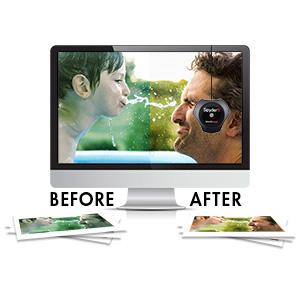
The Spyder5PRO by Datacolor is a professional-grade color calibration tool designed for laptop and desktop monitors. It delivers fast, precise color accuracy in about five minutes, leveraging ambient light sensors to optimize monitor brightness and ensure your on-screen images match printed results. With interactive calibration software and multi-monitor analysis, it’s ideal for photographers, designers, and professionals who demand consistent, true-to-life colors across all displays, reducing wasted time and resources.


| Best Sellers Rank | #134,801 in Electronics ( See Top 100 in Electronics ) #497 in Motion Detectors (Electronics) |
| Customer Reviews | 4.4 out of 5 stars 1,576 Reviews |
N**T
The Spyder5PRO & it's Software vs. Argyll
I used the Spyder5PRO on a brand new Dell p2416D IPS display -- unless you have a type of IPS or VA panel you very well may not want to bother. IPS & VA LCD panels are slower, making them less popular with gamers, but they display more colors, particularly as you get closer to pure black & pure white. Monitor promo materials &/or specs usually cite however many millions of colors -- more meaningful is if they list the percentage of sRGB that they cover. The Dell is specced at 99% sRGB, covers 100% after calibration, but doesn't make it to 80% of wider gamut color ranges like Adobe RGB. That alone doesn't make it that unusual or worth the extra cost -- you can buy monitors with IPS panels having similar coverage much cheaper nowadays. You can also buy more expensive displays with a wider gamut or range, but in that case you'd want to research if & how well whatever calibration device worked with wide gamut displays beforehand. Many people like extra bass when they're listening to music -- it's not accurate, but accuracy isn't important to them. PC monitors & HDTVs tend to be the same way -- out of the box these panels are set up so that what you see is more vivid &/or striking, while PC monitors are also very often too bright. You can find charts online, as well as use free & paid software that will help you adjust your display for accuracy, using only the display's built-in adjustments. When you use the Spyder5PRO's software &/or Argyll, you create a profile that software [including Windows] uses to alter the colors it displays on your screen. If your monitor adds a green tint for example, the profile will tell software to subtract so much green from what's sent to the display. The monitor will still display everything with that green tint -- the profile just tells software how to compensate. The only manual adjustment you do with the Spyder5PRO software is brightness -- with dispcalGUI & Argyll you can also adjust the individual RGB controls -- in both cases to get close [closer] to the target White Point. That means that it's to your advantage to at least set the contrast [& brightness] for your monitor beforehand, & it doesn't hurt to adjust the RGB levels [& maybe gamma if available] as needed. Not all software will use [or use well] the profile you create, plus if the display is too far off, that profile may not be able to adequately compensate to bring a color or colors back into range. Now before you can use the Spyder5 [any version] you have to download & install software. That's pretty much quick & easy with the software for the Spyder5, and it adds the necessary drivers. I downloaded dispcalGUI & Argyll as .zip files -- the Argyle software took a while -- and the only real installation needed was installing Argyle's drivers for the Spyder5. They're unsigned drivers that install in an unusual way in 64 bit Windows. dispcalGUI can install them for you, but it means restarting 64 bit Windows in a special mode. You also can't use the Argyll & Spyder5 drivers at the same time -- if both are installed you have to switch between the 2 in Windows Device Mgr. I took the easy way out, installing the Spyder5PRO software in win7 64, using dispcalGUI & Argyll in win7 32 since I've got both on this rig. Later I copied the profile they created to win7 64. The 1st time I ran dispcalGUI it asked me what folder Argyll was in, & after I installed the Spyder5 drivers it downloaded a file it needed. Using the Spyder5PRO software was painless. You hang the puck over the top of your display by its USB cord -- it has a felt-like ring to keep from scratching the surface. That USB cord passes through the *lens cap* that protects the sensor when you're not using it, & acts like a counterweight when you are. I've read reports that it was hard to slide the USB cord through the cap to give you enough distance between the puck & the cap to drape them over your display, but the one I got was pretty easy. Where I had problems is the cable is too stiff, having bends in it from being tied up -- I spent some time straightening it so the puck would lay flat on the monitor. The Spyder5PRO software is wizard based... It tells you when to hang the puck over the screen, & shows you an outline of the puck so you know where to place it -- during calibration the entire screen changes colors, so you don't have to worry about getting the placement exact. You can select whether to have the Spyder5PRO measure the room lighting or not. When you do it suggests a target White Point based on that measurement, or you can set a target from a drop-down box. It'll then measure a white screen, & ask you to adjust the brightness control -- after you adjust it you click a button to measure again, & it shows you how close you are. Once that's set you hit continue, & can now go off for a very quick cup of coffee or tea, as it doesn't take long at all. When the software's done you're asked to save the new profile, & the app gives you options to view test images with that profile on/off. Installing the software adds a utility app to the Startup folder in the Start Menu -- I'm not leaving the Spyder plugged in so I removed that start Menu Shortcut. It also adds a ProfileChooser app, that lets you switch the profile that Windows & your software uses. It'll complain that the profile you create with Argyll is too big, but it will use it just the same. As for the results of the calibration, it makes the screen a bit darker/warmer, especially if you accept a suggested lower White Point target after measuring room light. It didn't seem to alter image colors in Photoshop in a negative way, but my son & I [who prefer daylight bulbs] both thought it gave everything else in Windows a slightly unnatural look that wasn't there using the profile Argyll created. This is a big *Your Mileage May Vary* sort of thing -- I'm sure many people will prefer the warmer vs. colder look, the same way they prefer warmer vs. cooler lighting. Now on to dispcalGUI & Argyll... The dispcalGUI app isn't difficult, but neither did I find it intuitive. The developer goes to great lengths to explain what the settings mean on his web page, but then I had to spend some time figuring out where & how you change those settings. It wasn't immediately clear to me that you have to click the "Calibration" & Profiling" buttons -- it wasn't immediately clear to me that those were buttons. Other than that, my only complaint is that it's SLOW, taking 2 hours+ at default settings. Yes, it makes a lot of measurements, but the majority of the time it seems like nothing's going on at all, with no hard drive reads/writes & intermittent 1-2% CPU use -- the 1st time I ran it I kept checking Task Mgr. to see if it was still alive. One thing I like is that dispcalGUI will also do a verification run, where it will use the Spyder5 to measure what's displayed & compare that to the known values of color swatches. Assuming that when you read the report afterward everything passed, it's no longer a matter of faith that what you see matches what you're supposed to or should see on your screen. All that said, I personally can't say that the Argyll profile is more or less accurate than the one produced by the Spyder5PRO software, though it certainly contains a lot more data based on more measurements. The dispcalGUI web site explains the adjustments it does so that you can see more shades approaching pure black -- your screen most likely can't display pure black, so it can compensate by lightening the shades closest to black. You see more dark shades that way, but what you see is lighter than it's supposed to be. And comparing the Spyder5PRO & Argyll profiles with images in Photoshop, the main difference *I see* is increased shadow detail with Argyll's profile, I assume because of that. Bottom line, I bought the Pro version of the Spyder5 for the software, in no small part because I couldn't find out what I wanted/needed to know about using dispcalGUI & Argyll instead. I'd make the same choice today, because while I can [& likely will] use dispcalGUI & Argyll on this PC, I'm sure there will be times when I don't have time, plus I'll be using the Spyder5 on displays where I don't feel that the extra time & hassle are worth it.
M**K
Great device! Strongly recommend it!
I've been using every Datacolor monitor calibration device for years since the original ColorPlus. Spyder5PRO is yet another upgrade and I'm very happy with it. I'm not a photographer and I don't do much image editing, though I like to see pictures, video, etc. with the correct colors (who doesn't?). I've used the Spyder devices primarily to get the full value of my computers' monitors for two reasons: 1. A decent monitor is expensive. As such, the color calibration should be correct. Over time, the original factory calibration gradually degrades and the Spyder calibration tools fix that very well. 2. Regardless of how powerful your computer is (or isn't), except for sound, virtually all of the computer's output comes to the user through the monitor. In my opinion, a correctly calibrated monitor is much easier on the eyes, even with B&W text documents. I've always been very happy with the Spyder devices' calibration results. Both the hardware and the software are easy to install and use. The hardware uses a powered USB 2.0 port with no additional power needed (no electrical outlet). Once it's registered, it can be installed on as many computers (desktop or laptop) as you have. I use the software's wizard, so it guides me and does all of the work for me - almost no thought required :-) . For professionals, or anyone who wants to do it, the settings can also be adjusted manually to the user's ultimate requirements. I'm very impressed with Datacolor's Customer Service, too. I haven't had problems - just questions. For example, I had the Spyder4PRO and was happy with it. When I received the upgrade announcement, I compared the two and really didn't see much difference. So I emailed customer service and asked why I should upgrade to Spyder5PRO. I received a reply the next day with a refreshingly straightforward, honest answer: The rep told me of a few real improvements, but also told me that if I was happy with my Spyder4PRO, then I should probably keep it and not upgrade. I upgraded to Spyder5PRO anyway, just to stay current. The customer service rep was probably right. I don't really see any difference in the software or the results, but that's just me. Regardless, I like it and I don't regret upgrading at all. Note that for professionals or anyone who does a lot of photography or image editing, Datacolor also offers the Spyder5ELITE and Spyder5STUDIO. More expensive, for sure, but many more features to suit your needs. After years of experience with Spyder display calibration tools, I strongly recommend the Spyder5PRO to anyone who wants their display to look the way it should.
A**R
and with excellent results. So
Anyone serious about photography, needs to color calibrate their monitor. Otherwise, you are making adjustments to you images that aren't color correct. (So, why make color adjustments at all?) I had previously used the Spyder Pro 3 to calibrate my monitor...and with excellent results. So, why did I need to buy this one. Because I loaned out my old one and it never came back. Dang! You may not know this, but most, if not all, monitors come too blue, and too bright for photo editing. Why? Because, it looks better on the sales shelf. Overly bright and color saturated pictures attract buyers. Which monitor or television do you gravitate to when your walking by the displays...the brightest...color saturated one...sure you do. I have one suggestion. After you calibrate your monitor, you'll notice that it doesn't appear as appealing as it did prior to calibration. Resist making any changes for a week, and then revisit your concerns. You will not want to change it back. Even if you don't buy this product...do get some brand of color calibrator and calibrate your monitor. You may not need, or want, all of the features available on the more expensive models. The basic models work just great, if all you are doing is calibrating your monitor, and only have and use one monitor on you computer. So, be careful and select the feature set that best fits your needs. Hope this helps. However, this is the S5P100 version, and it's even better. How can you tell if you monitor is properly color calibrated? Color correct you images, then send them to a reputable lab, select no color correction from the lab, and see what comes back. If the images pretty much match your monitor screen, then you got it. All of this of course, hoping that the color lab calibrated their equipment, so the results are meaningful. I have had the distinct privileged of using a color calibrated monitor for the last 7 or so years, and can tell you that it's one of the best hardware upgrades that you can do, if you are a serious photographer, and want to elevate your work to the next level. Sure there are other monitor calibration systems out there, but being familiar and having used Datacolor's Spyder Pro monitor calibration systems, I'm happy to give it a big thumbs up and highly recommend it to anyone that wants revolutionize their workflow.
S**N
Great hardware - but avoid the software it comes with (on Windows)!
Summary: Great hardware / Terrible software! I've used other measurement tools in the past, and am familiar with the process. This colorimeter is really good for the hardware, and the price. HOWEVER, if you are a Windows user, be prepared to fight a bit with the software. Here's my experiences: Minor Annoyances: The first issue I observed was a USB cord that was too short. I had to use a short extender that came with some other hardware I had to allow the device to reach my second monitor. There was a warning about not plugging it directly into the motherboard, but this worked fine. Major Issues: The first major issue I ran into was how the SpyderUtility worked with my setup. I am running Windows 10 with two displays (one DisplayPort, the other DVI), and a GTX1080. I first ran into permissions issues, despite having UAC turned off. Install as Administrator apparently. Also, the utility has the ability to "load profiles", that is set to automatically load every minute (configurable). I found that if I rebooted my computer the SpyderUtility didn't even startup. It crashed upon start. I confirmed with with Process Monitor and boot-time logging. I also confirmed it was running under my user account, so permissions weren't an issue here. Once it was running, it worked and loaded profiles. But... if the computer went to sleep OR I changed my configuration to use my other monitor as primary (I attach my MacBook to my larger display and disable it at times), then the SpyderUtility would fail to load profiles. It shows an error. Manually choosing to load profiles would also produce the error. But, if I exit the SpyderUtility, then re-launch it (look in the Program Files/Datacolor folders), when I try to load profiles, it works!! This basically turned into the routine of me exiting it and re-launching it every time I sat down to my computer. Not cool. Another interesting observation (through trying to debug the code using a tool I have) is that it seems to be authored in RealBasic (Now Xojo). As a developer, I find this interesting, and might explain some of the issues. On the other hand, I calibrated my Macs as well, and had zero issues with the software. This is probably due to the (still) terrible support Windows has for loading ICC profiles. Also multi-user support is non-existant, and never even addressed in the docs. You basically need to run the installer, and profiler for each user. Stinks. Another nail in the software coffin is that they are now pushing for some "Elite" version of the software that seems to enable some "advanced" stuff. This is no bueno. I don't buy hardware only to have to pay more for software to take full advantage of it. Bait and switch galore! So, after reading some other reviews, I decided to try some open-source software called DisplayCAL. Long story short, I now have two perfectly calibrated displays, and no loader issues! DisplayCAL really filled the gap left by their tools. The software is quite complex, and takes a little reading and tinkering (and patience) to get right, but in the end, it is far more advanced and powerful than the Datacolor software. Calibration takes a lot longer, but it is totally worth it! The best part is that I didn't have to pay more, and now I'm able to take full advantage of the excellent hardware. One last nitpick. Experimenting with the ambient light detector, I found that it's not so good at the 'ambient' part. I got wildly different results in DisplayCAL (that showed me the raw LUX value) by changing the angle of the device. It's pretty directional. Be aware. Since the hardware seems to work fantastically, but the bundled software kinda stinks, I have to knock off a star. I almost knocked off two, but they are a hardware company, and I do like the hardware. I just hope the software issues don't send too many users off in a rage before they can fix these SERIOUS problems. Cheers! - Sean
J**Y
Proper Monitor Calibration is Essential for the Serious Photographer/Graphics Artist & Spyder Makes It Easy.
I rented a Spyder Calibration Unit last year to calibrate my monitors, and was shocked at how out of calibration they were at the time. Since I am spending more time photographing people, and proper skin tones are so important, I knew then that I would need to buy a unit to calibrate frequently, so put the Spyder on my Amazon Wish List at that time, hoping for a better price. When a large discount was offered in the Daily Deals last week, I clicked the order button right away. (This is a plug for the Amazon Wish List; when you add items, Amazon will prompt you when a better price is announced.) Today, I installed the software, activated my Spyder unit and recalibrated. The software installation and activation process is highly automated and easy to follow, and the calibration process is virtually hands-free. I just had to manually adjust the brightness on my Dell U2412M monitor. I set the calibration interval for one month, but may do it more often since the process is so streamlined. The Spyder5Pro arrives in a small square carton, which is ideal for permanent storage of the unit. A software CD is not included, and must be downloaded.
S**N
Makes a real difference
Finally, both monitors are showing the same colors! I never thought it would be possible since the one is significantly lower quality than the primary. Both now show colors I was never able to achieve with on-screen settings and even fine tuning on the PC. It was always a big concern that my colors would be wrong, and in fact, it was! After countless projects completed, I only now was able to confirm my fears. Thanks to the Spyder5, I can now do precise work without the fear of colors being off. While traveling, I tried to avoid editing because of my laptop's noticeable difference in colors. I never trusted it so rarely used it for work. Now, however, I can confidently work on the fly, which is very important. The Spyder5 software is not very nice, so I switched to DisplayCal's free software which proved to be a massive improvement. It takes a lot longer to calibrate (Spyder5 = +-5min per screen, DisplayCal = +- an hour per screen) but the results speak for themselves. Any person working on photos, graphics or any color-sensitive projects must invest in a calibrator. I see way too many people (photographers, photo editors, graphic designers etc.) working on uncalibrated hardware. This is an investment that will significantly improve the quality of your work.
D**O
Great hardware; inaccurate software!
Easy and well designed colorimeter. Only problem I have had is with the software. The hardware included and setup is easy to follow and results are ony a few minutes. But after the calibration using the same display, time of day, the results were noticeably different. I thought I may have made a mistake in setup and started again and the monitor looked completely different! I have read in other reviews about the software not being that accurate and better third party software was out there. Knowing this I had downloaded the recommended software in case I too had problems. After much reading and disappointed with my results with the included software, I installed the third party software DisplayCal and what a tremendous difference. The colors, tint,contrast adjustments were vibrant. Repeating the entire process again proved the new software kept my display looking great. After a quick couple of tweaks with a picture I know, the printed results were extremely close. I'm an amateur but experienced enough to know when the end result matches very closely to my tweaks, I've got the right hardware and better software. Let's hope Spyder takes notice and works out the bugs for their software. Two stars taken off.
G**E
Must have for any image editing...
Wanted to calibrate my MSI GT 72 laptop display and my Huion pen tablet monitor so they would have better color and dynamic range as well as be closer together. It takes a bit of experimenting, but I was able to get them very close together. The software seems comprehensive in it's settings and it will step you through the whole process. The only issue I have had, and this just may be a hardware limitation on my laptop, is I have my computer setup to go into power save mode by turning off the monitors after some time. Apparently this unloads the ICC profiles from the graphics card, so when I wake it up, the calibration is gone. There is a "Load Calibration" sub menu item on the control panel, but it does not work. I have to open the software, click on 'spyder proof', and toggle the calibration on/off settings to get the ICC to load again. Only workaround I know is to not let the computer go into power save mode -- something I don't want to give up. It's an annoyance, but i don't have to always have them loaded, only when doing image work. Other than that, I am satisfied with this version of the Spyder, being a past user of the original Spyder. It really makes a difference.
R**R
10 on 10
Must needed for post processing, and having your mobile as Super Alomd or 4k panel it will match 90%. Easy to use. Too costly
D**D
Excelente
Muy buen producto, buena construccion y muy facil de usar. El software tiene buenas opciones para el rango de este calibrador, pero si usas las opciones avanzadas puedes medir la intensidad de luz de tu monitor y ademas viene una opcion para poder medir la saturacion en los canales rgb en caso de que tu monitor tenga opciones para poder alterarlos de manera independiente, cosa que es muy util. Una muy buena opcion que trae, es que si tienes monitores mas avanzados o necesitas mas opciones de configuracion, puedes subir de nivel el software. Su calibracion es consistente si uno la repite, cosa que al parecer era un problema en el spyder4 y me detenia un poco de comprarlo, pero despues de estar investigando mas y usarlo, me queda claro que esos problemas ya los arreglaron.
P**R
Spyder 5 Pro and limitations
The reason I bought the Spyder 5 Pro, it was a Black Friday deal at £87.75 and was cheaper than the basic unit on the day. So what is it like..... The puck itself is very solid and I like how the sensor cap acts as a counter weight. Construction wise I can't fault it at all. As a calibration tool it's brilliant. After using this on 3 different monitor I can say with all honesty this is a brilliant calibration puck, It does exactly what its supposed to and I recommend this to anyone looking. Buy the basic model only as they are all the same. its the extra bits in software your paying for.. More on this aspect further on.... I loaded the software which you have to download from the website and enter serial number which is inside the box. Once downloaded you click install and away you go. pretty simple really. Then it stays simple.. I use a BenQ PD2700Q monitor in Srgb mode powered by a Quadro P400 10bit card. So I set up for calibration, Did room ambient light test and then hung it on the monitor. You will need to tilt monitor back as far as you can go to get the puck to lay flat on the screen. So after a bit of settings changes ie Colour temp. I hit calibrate. Screen flashes a while then does a few tests of colour swatches then told me to reduce my Brightness to match a figure on a bar that pops up on screen. So I dropped to 28% brightness and to all intense and purposes and 20 minutes later that was it. Calibrated. Now I have the Pro version of the software and to be honest I was not impressed. I wonder what the basic software is like. So maybe I won the monitor lottery and my BenQ was almost perfect with factory calibration. maybe, but I had this feeling so I went online and did a search for calibrate my monitor etc. Pretty much every search I looked at said the same, Software is adequate but not ideal, Puck is brilliant. Which matches what reviews on Amazon say. So I downloaded Display Cal as this is recommended both on Amazon reviews and the internet reviews as The calibration software to use. So I did and what a difference its made. My gamma level was changed to 2 from 2.2 It then proceeded to run a huge amount of tests of colour swatches. Recalibrated profile on the fly as it made more tests and improved whatever it was improving. ( Im not a techie ) So after 57 minutes.. You read right 57 minutes of calibration I was done. The difference is huge and I'm looking at a screen that feels reborn. Screen shots are from display cal My monitor displays 105% of Srgb 80% of Adobe as factory spec. In conclusion. Buy the basic Spyder 5 it is brilliant, Get Display Cal and use that, Also give them 20 euros donation its worth every cent.
C**N
Sonde Spyder 5 Pro indispensable pour une bonne restitution des couleurs
Je regrette de ne pas avoir acquis cette sonde d'étalonnage plus tôt depuis 8 ans que je développe mes photos numériques , je pensais que mon écran était fidèle dans la restitution des couleurs , hélas ce n'était pas le cas , toutes mes photos étaient trop jaunes avant étalonnage . La sonde est facile à utiliser , il existe de nombreux tutos bien faits , le rapport qualité/prix est bon et le délai de livraison correct . Après étalonnage le comparatif Avant / Après est édifiant , je pense que lorsque l'on a un écran de plus de 8 ans et fortement sollicité il est conseillé de refaire un étalonnage par mois . Je recommande cette sonde de qualité .
W**A
Einfacher geht kalibrieren nicht
Spyder5 Pro wurde mir in einer sehr stabilen Verpackung geliefert, der Produktcode für die Software befindet sich im inneren der Verpackung unter dem Sensor. Die Software muss heruntergeladen werden. Einen Quick-Start sowie ein Benutzerhandbuch gibt es ebenfalls zum Herunterladen und kann natürlich auch ausgedruckt werden. Dass kein Installationsmedium mitgeliefert wird und auch kein Handbuch kommt erst einmal der Umwelt zu Gute, natürlich damit auch dem Unternehmen, ersteres ist mir aber wichtiger. Die Installation ist selbsterklärend, auf der angegeben URL sind alle notwendigen Schritte erklärt, so dass die genannten Dokumente nicht erforderlich sein sollten. In der, nach der Software Installation verfügbaren Readme wird für Spyder5 auch Windows 10 32/64 angeführt. Bei Amazon war dies (Ende 2016) in der Produktbeschreibung nicht angegeben, die Software wurde bis Windows 8.1 ausgewiesen. Hier hatte ich erst Bedenken, da ich die Software unter Windows 10 installieren wollte. Dies wäre damit aber geklärt, die Software läuft unter Windows 10 Version 1607 einwandfrei. Im Rahmen der Registrierung wird ein neuer Registrierungsschlüssel zugeteilt, mit dem man sich im Falle einer Neuinstallation der Software erneut registrieren muss. Eine für mich durchaus nachvollziehbare Vorgehensweise, verifiziert habe ich diese nicht. Ich hatte im Vorfeld versucht meinen Monitor „händisch“ mit den unter Windows 10 vorhandenen Funktionen zu kalibrieren, einige Zeit (mehrere Stunden) dafür verwendet. So ganz schlecht waren meine Einstellungen nicht (mit zusätzlichen Tipps aus der c’t und diversen Anmerkungen aus dem Netz), etwas zu kalt und zu blaustichig dann aber doch. Das Resultat nach der Kalibrierung mit Spyder5 hat mich erst einmal überzeugt, so hätte ich es nicht hinbekommen, mit einem Messgerät vielleicht. Aber dies war ja der Grund, warum ich mir das Produkt bestellt habe. Auf Grund der teils negativen Bewertungen hatte ich erst etwas gezögert das Produkt zu bestellen, bin jetzt aber mit meiner Entscheidung zufrieden und insbesondere auch mit dem Produkt und der sehr einfachen Handhabung. Zum jetzigen Zeitpunkt von mir erst einmal die volle Punktzahl.
Trustpilot
1 month ago
2 weeks ago