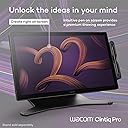
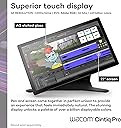
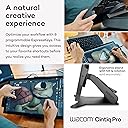
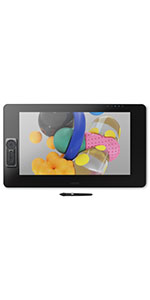
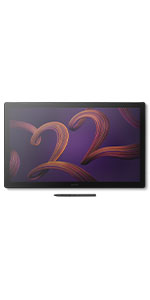
🎨 Elevate Your Artistry with the Ultimate 4K Creative Powerhouse
The Wacom Cintiq Pro 22 is a professional-grade drawing tablet featuring a 21.5-inch Ultra HD 4K touchscreen with 120Hz refresh rate and 10-point multi-touch. Equipped with the Pro Pen 3 offering 8192 levels of pressure sensitivity and customizable controls, it delivers precision and responsiveness for graphic designers, illustrators, and digital artists. Its Pantone-validated display ensures color accuracy, while ergonomic features like the Easy Stand and ExpressKeys optimize comfort and workflow efficiency. Compatible with Windows, macOS, and Linux, this tablet is a durable, long-lasting investment for serious creatives.


| ASIN | B0BQ7MQ68J |
| Active Surface Area | 18.7 x 10.5 |
| Additional Features | 10-point multi-touch |
| Best Sellers Rank | #101 in Computer Graphics Tablets |
| Brand | Wacom |
| Built-In Media | Digital Pen, HDMI Cable, Pen Holder, Power Cord, USB Cable |
| Color | Black |
| Compatible Devices | Desktop, Laptop |
| Connectivity Technology | USB-C (DP alt mode) x1, USB-C x1, USB-A x1, HDMI x1, Mini DisplayPort x1 |
| Customer Reviews | 4.4 out of 5 stars 638 Reviews |
| Display Type | LCD |
| Item Dimensions L x W | 20.3"L x 12.3"W |
| Item Height | 0.1 inches |
| Item Weight | 11 Pounds |
| Manufacturer | Wacom Technology Corporation |
| Model Name | Wacom Cintiq Pro 22 |
| Model Number | DTH227K0A |
| Native Resolution | 3840x2160 |
| Operating System | Windows, macOS |
| Pressure Sensitivity | 8192 Levels |
| Screen Size | 21.5 Inches |
| Specific Uses For Product | 3D Modelling, Animation, Designing |
| Target Audience | Student, Teacher |
| UPC | 753218984258 |
| Warranty Description | 2 year manufacturer |
J**N
Best Pen Display I've ever used
The most enjoyable pen display I have ever used. After one year of using it almost every day, I absolutely love drawing with it. It's such an enjoyable experience. I feel like I have so much pen control and the etched glass feels amazing to draw on. The touch is an okay experience. I only use it for zoom and moving the canvas around. I have to turn off touch to draw on Clip Studio Paint, and remove all other gestures for it to be usable for me. But pinch to zoom and moving the canvas are pretty important to me though since I started from an Ipad Pro. It's a huge beautiful display. The 120hz is a really nice bonus in my opinion even for drawing. It just feels like a treat compared to 60hz drawing displays. And then I can also use it for gaming as well. It's pretty nice. The sound noise is as noticeable as my PC that's running Noctua NF-A12s. When listening to music, I don't notice it at all. It's not that bad. I have only ever used an Ipad Pro, Kamvas 13, and a movink but it blows all of those out of the water. Although it rightfully should, considering how expensive this display is. I would definitely recommend this if you can afford it. I wouldn't recommend the stand though. That stand is expensive for what it is, and it still has wobble unless you plant it on the table and put a cloth pad underneath like I do. I'm not an artist that moves the screen a lot though so it's good enough for me. Try an Ergotron or go a little more for a XOOT.
M**E
A Professional Tool for a Professional Price
To keep things brief, The Wacom Cintiq Pro is the best display tablet on the market. It's long-lasting, durable, and offers a beautiful 4K Display with high color fidelity, but... it's not for everyone. In this review I'm going to discuss the Cintiq Pro from the perspective of both a layperson and the perspective of a professional artist. I've been using Wacom tablets for about 10 years now, and I've been working as a professional artist for about three. First and foremost, if you're combing through reviews, I assume you're asking yourself the same question I did when I was shopping for a display tablet: -Between Huion's Kamvas, XP Pen's Graphic Display, and Wacom's Cintiq, which brand of display tablet is right for me? Why is Wacom's product so much more expensive than both Huion and XP Pen? Is there something here I'm missing? It really depends on what you want out of your tablet. Wacom's premium price tag is largely due to the fact that the brand dominated the tablet space for nearly half a decade before any real competition (Huion) entered the game, and it established itself as the brand for professionals. That said, Wacom's hardware is designed to last... and last... and last. There's a reason that Wacom still sells and supports the tablets they released a decade ago: they still work as well as ever! In my opinion, buying a Wacom tablet is like buying a pair of expensive leather shoes. It might cost more now, but you know it won't be giving out on you... even if it gets roughed up a bit. My old Cintiq 13HD went through a LOT, and it's still kickin' like new. But does this longevity really justify the difference in price? In my opinion, not really. If all you want out of this purchase is a display tablet that you can draw/paint on, there's nothing you'll get out of the Wacom Cintiq Pro 24 that you wouldn't get out of Huion or XP Pen for a fraction of the price. INSTALLATION: The installation process was surprisingly painless. The tablet comes with two different setup configurations depending on the build of your PC/Mac, allowing you to use either a USB -Type C connection OR a USB and Displayport connection. Because the Cintiq 24 Pro is a 4K display, a standard HDMI port will not work without an adapter. all the cables were neatly packaged and clearly labeled, and I was able to get things running out of the box with no hassle. ACCESSORIES & PORTS: The tablet comes with Wacom's ExpressKey and their new pen. The ExpressKey was the biggest surprise for me; I expected to toss it to the side and keep using my keyboard shortcuts, but the ExpressKey is extremely easy to configure and very easy to get used to. Incorporating it into my workflow was a snap, and it's a feature I think I'll sorely miss if I'm working elsewhere. The additional USB ports and audio port allowed me more flexibility in my workstation setup, which I appreciate seeing as a few of the ports on my main machine are now taken up by Wacom's wiring. SIZE: The size of this tablet is formidable, but not too large for a dedicated office space. In some ways I wish I'd upgraded to the 32 because I'm used to a slightly larger monitor size, but when I'm using it as a drawing surface the tablet feels almost too large! Likewise, when I'm using it as a monitor, the bevels are a bit annoying. When I'm using it as a tablet, I'm glad they're there! WORKFLOW BOOST: The ExpressKey and pen work intuitively with most any software I've tried so far. ZBrush, Substance Painter, Photoshop, Clip Studio, Maya... Being able to customize those hotkeys is fantastic! CONS: The glass on the front is beautifully matte, but does catch a glare just a little more than a standard monitor might. I have to close the blinds in my office (which are directly across from my workstation) while I work to avoid this. I would not recommend buying this tablet without buying a Flex Arm or an Ergo Stand. In the images I've provided you can see it mounted to the Flex Arm. The freedom of being able to rotate and twist this tablet so freely makes it so much more of a joy to use. I've seen other reviews mention that their tablet dies out within 6 months to a year of purchase, so I paid extra for insurance. If any issues arise, I will return to this review with updates. UPDATE: 15 Months later and I have had no issues with the tablet’s functionality. The only thing that’s changed is that the ExpressKey accessory doesn’t stick to the magnetic bevel as well as it used to because the rubber backing of the ExpressKey is prone to collecting dust (which makes it slide). It’s a little difficult to clean, but otherwise… no complaints!
W**Z
Best in class
I have had this monitor for 3 months now. Before I got this, I had tried Huion and Xencelabs displays. Build Quality The build quality is excellent. The materials and fit and finish on my unit are top notch. The glass feels great underhand. Screen Out of the box color reproduction is within a few percent of what was advertised based on my test with an xrite color calibration sensor. There is a very slight backlight bleed on the right edge of the screen but this is only noticeable against a black background and will be covered up by the UI of any drawing program. The screen is very crisp despite the good anti-glare coating on it. Compared to other 4k drawing tablets with antiglare coatings, this one blows them out of the water in terms of clarity (looking at you, xencelabs 24). There is no point in buying a 4k monitor if the anti glare coating is blurry, and with this monitor you truly do get the benefits of 4k. The touch functions fine but I don't like using touch because I will occasionally accidentally trigger it. This is a problem for me regardless of device, even on iPads, so I wouldn't knock this unit for being overly sensitive. It's nice to have a physical switch to quickly disable touch on the back of the unit so I can use touch on occasion if I want to. The 120 hz is very nice but it is the sort of luxury you take for granted until you have to use a 60 hz screen again. The screen is plenty bright for me at default settings, but there are a multitude of different settings you can adjust for colorspaces, etc. I just leave it on default settings sRGB. Drawing Experience The pen is excellent. It is extremely accurate and all pressure levels are usable. I do not see any line wobble in an unstabilized pen on this display. Other Notes I don't use the trigger buttons but they are there if you want them and the buttons feel quality to press. I currently have the unit on the official Wacom stand for it and I think it is also excellent, very solid and easy to adjust. My particular unit has zero fan noise. The pen holder that comes with the unit sucks. Sorry Wacom, but this pen holder is practically designed to drop your pen at the slightest bump regardless of where you screw it in to the tablet. Just something to be aware of, you might want to store the pen somewhere else. The only true downside is this tablet is $3k and the stand is $500. This is certainly overpriced, but I believe the product is best in class for a 22" tablet. Time will tell what the lifetime of the product is but I expect it will last a long time, especially since the display does not use OLED technology.
A**S
Expensive ... but justifiable.
PROS: - 4K resolution - Fantastic Colors - Almost no parallax - Works right out of the box, and driver-installs are a piece of cake (for me, anyway) - The Pro Pen 2 is wonderful (best I've ever used) - The Remote, albeit a wonky button setup, works fluidly with the tablet and my workflow - Very sturdy design (feels high quality) CONS: - Expensive - No stand included in the box, just two small kickstands built under the tablet - Poor quality-control on earlier units (I don't know if they curbed that, or if I just got lucky with mine) EXTENDED REVIEW: I've owned both a Huion GT-191 and a Cintiq 13HD, and the Cintiq Pro 24 makes them both feel like cheap toys. Don't get me wrong, you can achieve essentially the same thing with any of these devices. You don't need a $2,000 tablet to make digital art. It's honestly excessive unless you can justify it for the work you do. I can't, but I obsess over using the best hardware available. That being said, I don't regret it! I went in mainly excited for the nearly non-existent parallax and the pro pen. I expected the 4K resolution to be nothing more than a gimmick for easy marketing. To my surprise, the resolution ended up being one of the most prominent features this tablet had to offer. Going from a Huion GT-191 V1 at 1080p with a really poor color grade, the Pro 24 blew me away. The colors are vibrant, and I'm able to work super close to the screen without seeing any pixels. It's fantastic. The etched glass is also really nice, and coupled with the felt nibs, it's the closest to feeling like paper that I've experienced on any tablet. The remote is also super handy. I'm still getting used to it, so sometimes I'll tap the scroll wheel and it'll do something unintended, but I still prefer it over built-in buttons on the bezels. I should add -- going from a Huion back to a Cintiq, it really is fantastic how these tablets just work right out of the box. My previous Huion consistently had driver errors or just downright wouldn't work for seemingly no reason at all. It felt refreshing to plug it in and just start drawing immediately. The main con for me is the lack of a stand in the box. I get that they wanted to market the Ergo Stand, but surely they could've thrown in something to allow more than one super-low angle. Like a lot of people, I resorted to just propping a few books under the little kickstands, and that essentially solved my problem. I've also seen some negative reviews for the Pro 24 where they've received essentially unusable units. I can't speak on that since mine was in perfect condition out of the box. It seems like Wacom had a quality-control issue with this model on release, but they've since smoothed that out. (I don't know though, maybe I just got lucky?) I was super anxious about spending $2,000 on a pen tablet when the last two I've owned had annoying issues and were letdowns in their own ways. I'm happy to say that the Pro 24 lives up to its price and delivers exactly what I was hoping for. That being said, I came from a Huion GT191, so my point of reference isn't the same as someone coming from another high-end pen tablet.
H**G
BUYER BEWARE! USED PRODUCT SOLD AS NEW!!!!!!
Alright, I don't know where to begin! I was very excited to order this product. This product is something I've been wanting for a very long time and saved up money for. I received this product and shipping was already over a week late. When it finally got into my hands, I opened it and I noticed right away when I took the monitor out, there was a lot of rattling going on. I thought maybe something had happened to the screen. Well, there is a plate that comes off on the back where you plug everything into and the plate is put back on for cable management to make it look nice. The thing is, some Vesa mount screws were just left tumbling in the back. There were four of them! Then I saw that the Bluetooth dongle was already inserted into the slot in the back of the monitor. When I took out the screws, I was a bit alarmed because the screws are black but the paint on all four of them was worn off like someone may have owned this monitor and maybe returned or it was a refurbished product! This upset me pretty badly because, You pay $2000.00 for a BRAND NEW-quality product and received something used. Upon further inspecting this monitor, I noticed that under one of the leg stands, one of the screws was absolutely loose!!! I mean, what is going on here!!!!???? Then, I went to the Wacom website to look over what came with the Wacom Cintiq Pro 24. Low and behold, there was some ring sets for the pen but, they weren't even in the box!!! I went the Wacom website to speak with a representative because I was worried about how I received my product. I was told that there should have not been any missing parts and all the parts are always made sure it is packaged in. I told the rep about the screws and what not, he told me it sounded like Amazon sold you a used product or a refurbished from somewhere. He told me, it wasn't a refurbished Wacom product because during their testing, they make sure everything is in order for their refurbished line. He also said it wasn't new because Wacom does not plug in the Bluetooth adapter during packaging! I then contacted Amazon. The rep put me on hold. When he returned, he apologized and said that I may have gotten a used product!!!!!!! Are you serious!!!??? I could not believe this was happening. The rep spoke to his manager and the manager approved to send a whole new Wacom Cintiq Pro 24!! Now, I am definitely thinking about asking for a refund!!! This is just too much money to be messing around with and this wasn't cool at all!!! I also bought the Asurion protection plan and a $150.00 screen protector for it!! Total loss!! So, my advice to anyone purchasing these very expensive pen displays from Amazon, CHECK IT OVER!!! ALL OVER!!! Go to the Wacom website and look at what comes with the display!! Don't ever assume everything is packaged in because the hype of getting one has taken over in that moment!! If I could rate no stars, I wouldn't hesitate! What a terrible experience! UPDATE: I received the new Wacom Cintiq Pro 24 today. Upon opening it, I heard no rattling at all. The four screws in the back of the monitor for the vesa mount were screwed in properly and were not unscrewed. I checked the screws under the legs and they were in as they should be. The colored rings for the pen were also in the box. Everything was packed neatly and nice like a brand new product should be. There were no dead pixels either as I ran a dead pixel test on the monitor. I'm pretty happy this has a good ending, otherwise it was going back and I was getting my refund. All in all, please, when you buy a product this expensive, check it over and make sure it's not used being sold as new. Also, make sure everything is included. You need to get what you paid for.
M**G
Thought I Would Never Need a Cintiq...
I'm a professional artist and have avoided getting a Wacom Cintiq due to the price. Instead, I'd been using off-brand interactive screen displays, my last one being the Dell Canvas 27. I'd used the Canvas for years and loved it, though it was never perfect. Since Dell stopped supporting the Canvas a few years back, I thought it best to get a different interactive pen display in case Windows updates caused the old drivers to cease to work. I really liked the size of the Canvas 27, but it seemed that no one other than Wacom had a 27" interactive pen display. So, I bit the bullet and bought this, hoping I wouldn't regret my decision. The fact is, drawing and painting on the Cintiq Pro 27 is by far the best experience I've ever had. It's smooth, fluid, and simply a joy to work with. I thought the Canvas was a better alternative when I'd purchased it because I didn't really think there could be that much difference in experience. I freely admit I was wrong. The quality of line, the effortlessness of drawing/painting on the Cintiq is unparalleled. For anyone who thinks that these off-brand pen displays can compare ... they can't. Don't get me wrong, they are good. Even great. And they are certainly not near as expensive. But the experience using the Cintiq simply blows them away, from my limited experience having owned and used a few different brands. Having said that, the Cintiq Pro 27 is not perfect. While I like the pen (the adjustable weight really helps it), it seems cheap, which is surprising considering it's importance and what you pay for this entire unit. The buttons on the left and right side (at the back) are useless. They are just not comfortable nor convenient to work with. The pen holder is ... bad. I don't use it. If you screw it into one side or the other, you block use of the buttons (but since you probably won't use them anyway, perhaps that's not a big deal). That's pretty bad design, imo. If you place the pen holder at the top, then you block some of the air vents used to cool the Cintiq. Again, bad design. Not sure what they were thinking when they made this thing. I've heard people complain about the fan noise using the Cintiq Pro 27. I don't even hear it. So, it's a total non-issue for me. I'm giving this 5 stars because it's an utter joy to draw/paint on and the small form factor makes it pretty light overall, which makes it easy to move about on the monitor arm I have it attached to.
M**N
I held off buying this tablet for months...
I held off buying this tablet for months because I had read so many reviews that made me very reluctant to pay $2,000 for something that so many people seemed to be having issues with. When I eventually did take the leap I was incredibly pleased to find that not only did this thing plug into my Mac Book Pro with a single cable that was included in the box, but more importantly - its performance exceeded my expectations. It was up and running in twenty minutes and I was enjoying all the high resolution and pen sensitivity that Wacom promised. If your a serious illustrator or designer I can't recommend upgrading to this larger format table enough. This tablet is fast and smooth and lives up to all the promises regarding its function. I do have a few complaints... The materials have a rather flimsy feeling about them and the overall construction just doesn't exude quality or instill a sense of confidence in its construction that is indicative of a product with a price tag like it has. For the price I want a product that looks and feels as great as it works. I'm thinking maybe some wood panelling might do the trick...JK. (or maybe I'm not) The tablet squeaks and groans when I am using it and the plastic screen is very vulnerable to scratching and feels a bit cheep under hand. My complaints around the materials are relevant to the stylus as well. How about a pen that has some weight to it? Additionally, the parallax could be better. It certainly is better than my former Wacom tablet but they still have a way to go with this. Basically, if Wacom could take their cues from Apple tablets concerning these tactile issues it really would be perfect. I don't deduct any stars for these complaints because ultimately they don't effect the performance of the tablet.
A**L
The tablet for creative professionals just got better
The tablet is huge. It's so big I have to lean my body to draw or click buttons on the side. This doesn't mean you shouldn't get the 32 inch version because even that one is too small for certain programs like Maya with all the windows open within that program. the 32 will also be useful for setting up reference photos while drawing or sculpting so yes go big if you can. As for my budget i can only afford the 24 inch model and I'm using a second monitor for references, etc. Moving on, the display has touch sensitive buttons on the top video info/input, tools,keyboard, and display settings. It comes with a pro pen 2 and magnetic remote as well which I will do a mini review down below. My PC Specs Intel i7 4770k 3.5 ghz Evga gtx 1080 ti sc2 32 gb ram some motherboard 650watt psu 250 ssd for OS and main apps 120 ssd more apps 1 tb hard drive 2 tb hard drive external Stylus feedback. After the driver update the the pen was working as it should meaning you can really take advantage of the pressure sensitivity like drawing very light to get thin lines and putting more pressure for thicker lines. Of course the brush must have those features in order for this conditions. I really wish the pro pen 3d was included I never use the eraser in the top its too time consuming to flip it. The pen you are getting here comes with 2 buttons on the side and 1 on the top. On the bright side No wiggly lines EK Remote. The remote is much better than my 9 keys I had on my cintiq 13 but it's not perfect. Yes the rumors are true the touch is not that good but i discovered if you want to change brush size for example, your are supposed to keey your finger positioned on the touch ring continuously for a better responsiveness. It's tricky but once you get the technique down it works. On the other hand, it has 17 buttons you can program. The remote does turn off after inactivity but it only deactivates a long time of inactivity if you are using it constantly it wont turn off. If you stop drawing and go take a shower and come back it will probably be off. Some users say the remote slides down on the screen but mine doesn't. My screen is at an 80 degree angle and the remote is secure on the screen. EDIT: The fan. The fan has become an issue I had the brightness to 40 and contrast to 40 and it still sped up so I brought it down to 35 on both brightness and contrast hoping it helps. Scaling. I'm using windows 10 and the system automatically scaled my display 200% but i keep it to 150 because it gives me more screen space for icons in my apps like Zbrush. Make sure you download the latest drivers or download older drivers if the new ones are not working for you. It goes the same for your other apps like Adobe products. The tablet legs. They are too small and are probably perfect for people who keep the display so low. I also don't have the money for the new ergo stand about to come out although it's really nice that you can flip to portrait and landscape. Instead I made a heavy duty wooden stand for under 15 dollars. Gaming. I love gaming, but I will use my second monitor for gaming; however, PUBG looks great in 4k (GTX 1080 ti sc2) Overall the tablet is great but the fan is now an issue
Trustpilot
3 days ago
2 weeks ago