Buy anything from 5,000+ international stores. One checkout price. No surprise fees. Join 2M+ shoppers on Desertcart.
Desertcart purchases this item on your behalf and handles shipping, customs, and support to Croatia.
🚀 Boost Your WiFi, Banish Dead Zones, and Stream Like a Pro!
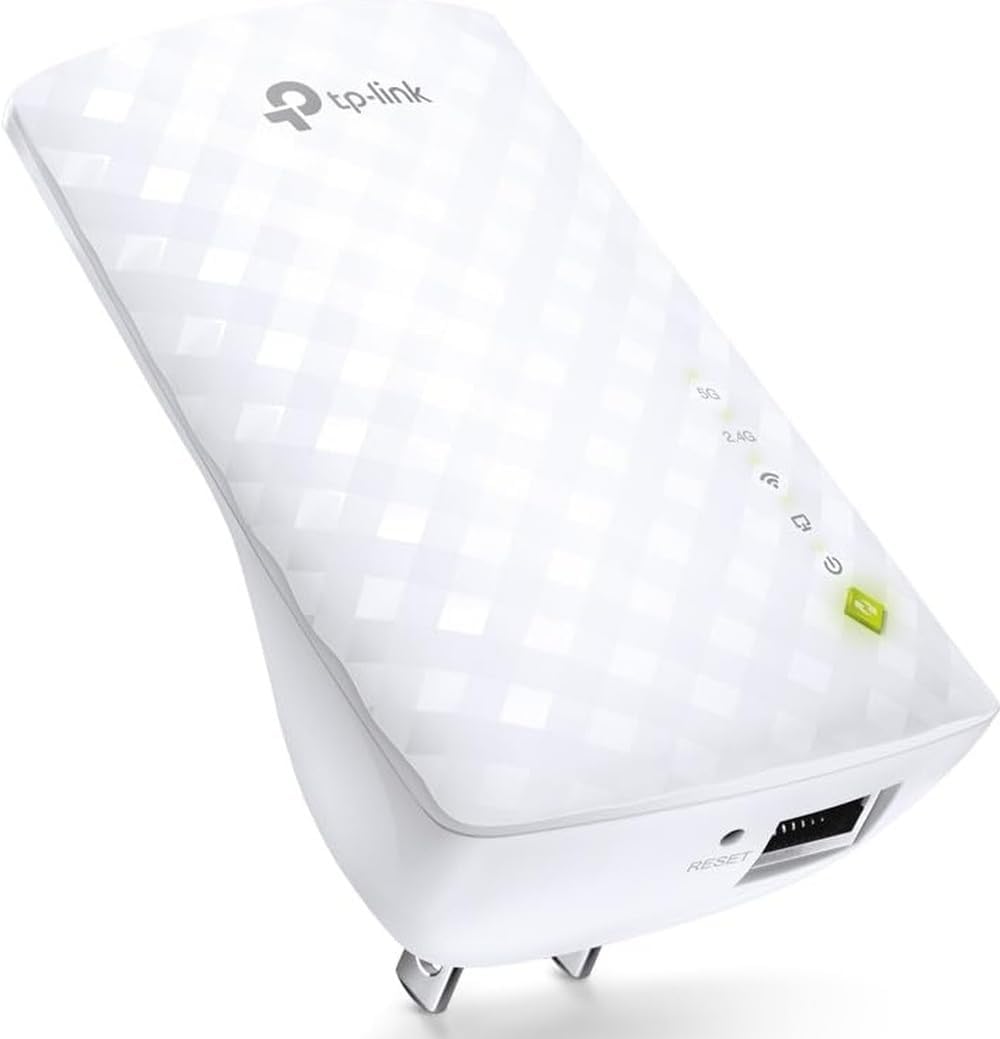
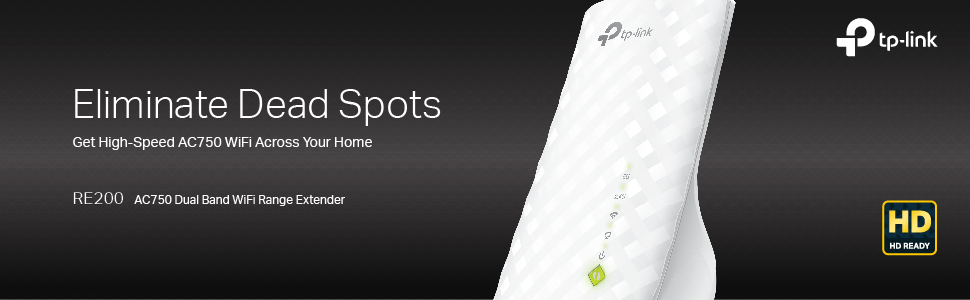
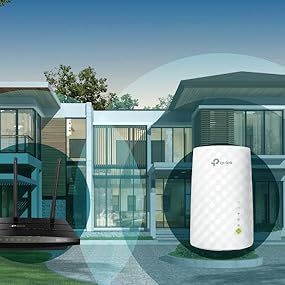
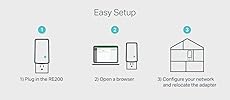
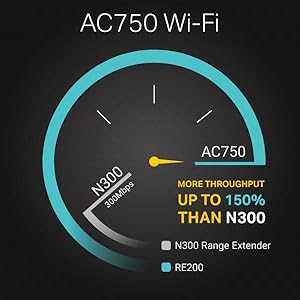
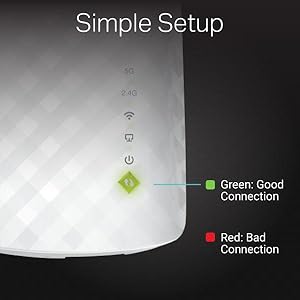
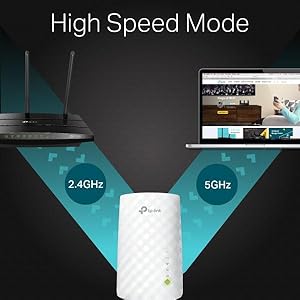
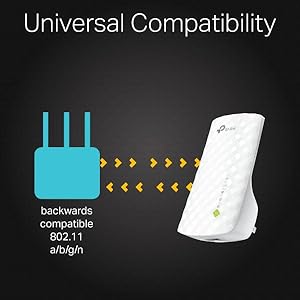
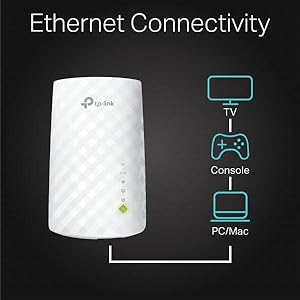
The TP-Link AC750 WiFi Range Extender (RE200) enhances your home or office wireless network by extending dual-band WiFi coverage up to 750Mbps. Compatible with all standard routers and smart devices, it features an intuitive Smart Signal Indicator for optimal placement and supports easy setup via WPS or browser interface. Designed for seamless HD streaming, gaming, and smart home connectivity, it comes with a 2-year warranty and 24/7 technical support, ensuring reliable performance and peace of mind.


| ASIN | B00NR2VMNC |
| Best Sellers Rank | #798 in Repeaters |
| Brand | TP-Link |
| Built-In Media | Owner's Manual, Resource Cd, Rj-45 Ethernet Cable, Wireless Ac750 Wall Plug Universal Wi-Fi Range Extender |
| Color | WiFi Extender - Ac750 |
| Compatible Devices | Smartphone |
| Connector Type | RJ45 |
| Customer Reviews | 3.9 out of 5 stars 21,430 Reviews |
| Data Transfer Rate | 750 Megabits Per Second |
| Frequency Band Class | Dual-Band |
| Frequency Bands Supported | Dual-Band |
| Global Trade Identification Number | 00845973071875 |
| Item Dimensions D x W x H | 2.16"D x 2.59"W x 4.33"H |
| Item Weight | 91 Grams |
| Manufacturer | TP-LINK USA |
| Mfr Part Number | RE200 |
| Model Number | RE200 |
| Range | 1.0, feet |
| Smart Home Compatibility | Smart Home Compatible |
| Special Feature | Dual Band |
| Special Features | Dual Band |
| UPC | 845973071875 |
| Unit Count | 1.0 Count |
| Warranty Description | 2 year Manufacturer |
| Wireless Communication Standard | 802.11a/b/g/n/ac |
| Wireless Compability | 802.11a/b/g/n/ac |
T**V
"Quick Setup" problems overcome, this is a great product. BEWARE 'VINE PRODUCT FREE REVIEWS'
Pro: Does what it says it does. My cable router/modem is upstairs; my downstairs Roku could rarely get a good enough signal from it to be useful. I've positioned the RE200 Extender in probably an even worse spot (near the Roku but on the floor so I can plug the Roku into the RE200 via ethernet cable) and it handles the signal from the upstairs router extremely well. The RE200 also now behaves as a wifi hotspot (which is the main point of the product), allowing our cellphones and other gear to connect downstairs much better than they have ever done. HOWEVER, and this leads to my Con: The initial setup was difficult. The push-button WPS method did not work for me, so I had to set it up via the browser-based utility. Nothing cosmic about that--when it works. It took several tries before I succeeded. Things to remember: 1. During Setup, it's important to re-name the network (in other words, don't accept the 'Copy from Main Router/AP' choice). Otherwise, it's far more difficult to troubleshoot where a connection problem lies. I suppose after you get everything figured out and have it working, you can go back and copy your router's name, but I'm going to keep them separate for troubleshooting purposes down the road. 2. If, during 'Quick Setup,' at the final step (rebooting), you don't get a message that says "Completed!", **it did not complete!** You will have what looks like a new wifi network, but nothing will be able to connect to it. If you did not get your "Completed!" message, you can manually reboot the RE200 by going to 'System Tools' --> 'Reboot', then press Reboot. You should get your "Completed!" confirmation after that. 3. If you're having problems during setup with even getting a simple connection to the RE200 browser page (http://tplinkextender.net/), try setting it up using the ethernet cable as a connection first. Also, if you somehow balled up the 'Quick Setup' and need to do everything again, use the ethernet cable. After you eventually get that sweet "Completed!" message, you can put the Extender wherever you really want it. 4. The RE200 comes in 2 flavors as of now (April '15): RE200(US) and RE200(EU). The US version has no firmware updates. The EU version is on its 2nd update. I have no idea how well or not well getting the update for the other region's RE200 would work, but given how much of a point Tplink makes that mismatching firmware and hardware can damage the unit, I wouldn't try it. I was tempted to try the EU firmware, but in the end I got my unit to work just by rebooting from the System Tools menu. 5. This replaced a HooToo brand repeater (the Nano) I was using that died after 2 weeks. I'll revisit this review if something goes wrong, but so far so good. And it seems about a 1000 times more solid than the HooToo. 6. Finally, I have to reiterate how well this thing works, when you finally get it to work. No deadspots anywhere in the house anymore, and our Roku's now streaming its little heart out the way it's supposed to. If this thing is still working fine in a month, I'll come back and give it that 5th star. EDIT:months later, this thing is still going strong. 5 stars! Last point: the 'Vine Recommendations' are from people who got the product early and for free. After the product has been out for awhile, you should *completely disregard* these early reviews. A review of a free product will almost always be more lenient than from someone who actually shelled money out for the thing.
I**R
It works as advertised, but there are limitations and things to know about the setup, particularly for Apple users
I installed two of these extenders on my network an extensively tested them using WiFi Explorer (a great app for diagnosing your wireless network). The bottom line is they work pretty well but with a few critical caveats both in terms of speed capacity and setup. On the plus side, I found these extenders to be pretty attractive -- they end up looking like those plug-in air fresheners, certainly less obtrusive than the newer RE210 version with the external antennas. And for the record the only different between these and the newer RE210's (other than appearance) is the 210's have a gigabit Ethernet port where these have a 100mbps Ethernet port. So unless you plan to use the wired port, save money on these. Setup was also easy if you have a newer wifi router that has a WPS button. You just plug one of these into a wall outlet near the main router, hit the WPS button on the main router, hit the WPS button on the RE200 and wait a few minutes until all the lights are solid green. Then unplug it, move it where you want to permanently station it as an extender and wait a minute and you should be good to go. By default it duplicates the main routers network name (SSID) and your various devices should "roam" to the strongest signal as necessary. Here are the caveats: 1) The easy WPS setup did not properly setup the 5.0GHz band of my router, only the 2.4GHz. Most wifi routers out now are "dual-band" -- they send separate signals out over both the 2.4GHz band and the 5.0GHz band. The 5.0 is much faster but typically has a shorter range. 2.4 is for older devices or greater distances, but also is more likely to experience interference from a host of other devices that use a similar band, from cordless phones to microwaves. Apple's routers disguise these two bands as one network name (which has both pros and cons) but most routers establish two network names, one for each band. When the WPS setup was done, the RE210 claimed, via its light, to be broadcasting on both the 2.4 and 5.0 bands. But my first clue something wasn't right was that they only duplicated the 2.4 band network name. The WiFi Explorer showed they were broadcasting separately on both bands, but with only the 2.4 name. However, the Explorer also showed they were only bridging/connecting to the main router via the 2.4 band. So what was happening, but it's default setup, is the extenders were receiving signals from both 2.4 and 5.0 devices but down-converting any 5.0 devices to 2.4 when bridging to the main router. Which would result in much slower speeds that you should see for a 5.0 device. This is one of the reasons (but not the only one) that some people complain this slows down their network. I was able to fix this by customizing the setup of the RE210's manually. I used an Ethernet cable attached to my laptop and the Ethernet port of each RE210 (one at a time). Then I opened a browser page to www.tplinkrepeater.net. It asked for a username and password. The default answers for both unless you change them are "admin". From there it was relatively straight forward to see that the connection to the main router's 5.0 band was "disconnected" and to follow the steps to connect it. 2) So now I had properly functioning dual-band extenders. But my performance was still far slower than when I was directly-connected to the main router on 5.0. This is because of two reasons. First, the maximum throughout speed capacity of the extenders is only about 1/3 that of my main router. They both use 5.0GHz and "ac" (the latest wifi standard), but the extenders have a lesser capacity. Second, Apple devices (which I primarily use) do a lousy job of "roaming." Roaming is when the device automatically switches from one device broadcasting the same network to another to get a better signal. It's the same way your mobile devices work from cell tower to tower. That's how the network extenders work too (by default*). But using WiFi Explorer I have been able to see that my Apple laptop gets very loyal to an extender even when the signal and speed are far worse than the main router. Windows and Android devices allow pretty discrete user control over how aggressively a device "roams" but Apple likes to keep it simple and not allow a lot of user control so they don't. There is a way around this problem, with a trade-off. You can have the extenders broadcast their own discrete network names (SSID's). If you do this your devices will not automatically roam, you would have to manually device when you are getting a weak signal from the wifi device you are currently connected to tell it to switch to the other one. But this way you could be in full control of staying on the main router as much as possible and only switching in your known deadspots, especially if you give the extenders logical names (for example, if your main router was called "Joe WiFi" you could name your extender networks "Joe WiFi Upstairs" and "Joe WiFi Basement" etc.). The other alternative, which I am seriously considering but haven't tried yet, is the undo all the configuring I described above and intentionally having the extenders only work on the 2.4 network. That way the 2.4 network would roam, but the 5.0 would stick with the main router. If I hit a truly deadspot I would manually switch over to the 2.4 network with the extenders. I have an ancillary motive in this plan, because most of the extenders are for deadspots my kids use -- their rooms, family room, etc. So doing this would have the secondary benefit of keeping the faster 5.0 network as uncongested as possible. Your needs may be different. A hybrid is also possible, I think, where you could roam on 2.4 but have the extenders use a unique network name for the 5.0 band.
T**G
Easy To Setup Using WPS--Surprisingly Good
This review is for the TP-link AC750 Dual Band WiFi Range Extender I am using this on a network that has a Mac Mini, a couple of iPhones and an iPad. None of these devices could print to both printers; it was one or the other and not both on every single Apple product. After trying everything I could think of, I bought this extender and tried to set it up using the Quick Setup instructions. Anyone EVER had the experience of those Quick Setups working? I haven't and I've been using this stuff for decades. After Quick Setup failed to do anything other than connect to my router and open my network up to anyone that could get signal, I tried a different approach. The EASIEST WAY TO SET THIS UP is to use the WPS button on your router and on the device. Press the WPS button on the router, then, press the WPS button on the extender. After a minute or so, the router and extender are paired/connected and the result is a secure connection to the router (uses the router's password--you do have a password don't you) with a much stronger signal in what were dead zones. Placement of the extender is sort of an experiment and moving it from plug to plug will show you the best location. Moving the extender after pairing does NOT foul up the connection. I have two printers, a Samsung M2070W laser and an Epson Eco Tank inkjet. Both have wireless capability and can use WPS setup. To setup other WPS capable devices, just press the WPS button on the ROUTER and then the WPS button on the next device you want to connect. The connection to the router goes through the connected extender with no problem and does not interfere with the router/extender pairing. Do each device one at a time. This was the solution I needed and now all wireless devices work together. It's a neat solution to solving signal strength and connectivity that can be an enormous hassle when using multiple devices from different makers.
G**K
Stay away unless you want unstable network !!
Bought it (TP-LInk AC750/RE200) last year based on high ratings on Amazon. 3 years warranty offered was a plus. My home network works great powered by a triband Linksys router. All bands works fine and very stable. To cover some dead spots in the house, got this. Installation was easy and soon I had extended network on 2.4 and 5 GHz bands. First few days, worked great. Signal strength increased and I got good speed in previous dead spots. Then started having intermittent connection issues on 5 GHz band. Signal strength would be great, but would get "Connected, no internet" error. Checking the device, IP was not allocated. Unplug/replug would restore service. Contacted technical support. They couldn't find much. Since issue was really intermittent, I didn't pursue further. Few months later, it has become unstable on all bands. I have to constantly unplug/replug to get service. Sometimes when devices are connected, it would drop signal for few minutes on all bands and then reconnect automatically. Other times, it would display "Connected, no internet" error on devices. Did some troubleshooting. The "system logs" don't tell much. Figuring the extender is having issues in DHCP interaction with router, I gave static IP address to TP-Link extender. That didn't help. Slowly, I started give static IP addresses to my devices as well. That didn't help either. Contacted the technical support. Its overseas. The 24 hours live agent chat doesn't work. It says, I am first one in queue but no one responds. Emails take a day process due to time difference. The first level of support gave me a new firmware to try. It didn't help. Then I was sent to advanced technical engineer. He gave me the same firmware to try. I flagged that to support and since then they have gone AWOL. Multiple follow-up emails have been unresponsive. With work from home in place, a stable network is critical. Have been many instances in the middle of meetings my connection would drop. Would waste minutes and rejoining the meeting after rebooting TP-Link extender. Unfortunately, the return period is over otherwise would have sent back. Cutting my losses and throwing this in trash. Will either get a new extender or go for mesh network.
B**K
Test this for yourself with a Wi-Fi app on your smart phone that shows the MAC address of the device ...
First, this is a Wi-Fi EXTENDER not a REPEATER. There is a difference. An extender receives the signal from your router, and creates a 2nd network to be distributed within its own range; that's what this TP-Link device does. A repeater will broadcast your existing network without needing to create a 2nd. YES you can give the TP-Links network the same name as your primary - but that doesn't magically turn this into a repeater...you still have to connect to the 2nd (TP-Link) network to use it. Some devices will automatically switch to the new "stronger" signal when in range...some will not. Test this for yourself with a Wi-Fi app on your smart phone that shows the MAC address of the device you are connected to. You may be surprised to see that you have to manually connect to the TP-Link's network even though it has the same name as your primary network. My personal experience with setting this device up was less than stellar. For reference, my router is an ASUS RT-N66U. My primary network is configured with a hidden SSID, MAC address whitelisting, static IP assignments for all LAN (wired and wireless) devices, and WPA2 security. My primary Wi-Fi network broadcasts both 2.4 and 5ghz signals, this is the hidden SSID with MAC Address whitelisting and static IP assignments. However, I also broadcast a guest network, both 2.4 and 5ghz signals that is NOT hidden, and does NOT have MAC address whitelisting or static IP assignments. This guest network also does not have access to my LAN or local resources – it only gets outside internet rights. Now before some of you pretend to be “IT experts” to tell me how you know that hidden SSID's and MAC address whitelisting doesn't stop "hackers" (which is not even relevant to this review) - save your breath and keystrokes - I'm not going to entertain that conversation at this time. I have been doing this for 15 years. And while I know MAC addresses can be spoofed and hidden SSID's can be found, it's the sum of the parts that count - not the parts individually. This device hates MAC address whitelists. From what I can tell, it has 2 or 3 MAC addresses itself: 2.4ghz, 5ghz, LAN. Yet only a single MAC address is given on the back of the device. I was able to find the other MAC addresses for the device by disabling my whitelist and allowing the device to connect to my router on both signals then simply checking my DHCP list. I added the devices MAC addresses to my whitelist, re-enabled the whitelist, and it immediately stopped broadcasting. Bummer. This device hates static IP assignments. This is due to the fact it uses multiple MAC addresses, if you want to use static IP assignments you have to add each MAC address and give them an IP. Not only that, but if you DON’T use a static IP assignment on the device, there is a chance that your router may give it a new local IP every time you move the device or reboot it. This can make it frustrating to try and get back to the device setup page if one minute you were connected to it with one IP but you moved the device now it has a new IP from your router so now you have to look in your routers DHCP list to find which IP was assigned. /yawn On top of all of this, after an hour or so mucking about with the manual setup I figured I’d try the WPS setup. To do this you have to unhide your primary SSID, fine… WPS worked! The extender is broadcasting on both channels! BUT… IT COMPLETELY WIPED OUT MY ROUTER SETTINGS – literally. It wiped my entire DHCP list, routing list, MAC address list, network configuration options, advanced options, network names, guest network configurations – EVERYTHING. It literally renamed my primary network (to some default name like “ASUS_99039230”), changed the Wi-Fi password, changed all of the settings, turned off QoS, turned off MAC address whitelisting…LOL. Luckily, I back up my router configuration every month, not a big deal to get it back to how I had it. All that being said, the only way I can get this to work (with my set of particular “requirements”) for the time being was to disable my MAC address whitelisting. I also tested with allowing it to clone my primary network to see if the change-over from router connection to TP-Link connection would be seamless and automatic. It wasn’t. So for now I simply gave the TP-Link network its own unique name, and when I’m out of range of my router, I’ll just connect manually to the TP-Link – which to be fair, gives excellent signal strength and speed in the 2nd floor where I installed it. Long story short, this is an excellent option for most people that simply use their router “out of the box” and employ very little to no network configuration beyond the default settings (aside from obviously assigning a new login and password for the router and Wi-Fi password). But if you’re a network geek like me and have done a ton of customization on your network and router, this device might give you some problems in your setup…and possibly wipe out your router configuration – at least if you’re using an RT-N66U and try the WPS setup…
R**R
Great little extender
I only got this TP-Link AC750 WiFi Extender less than a week ago but it does everything it's supposed to do and works great. I read many reviews on this extender along with extenders from Netgear and saw that many people were complaining about the difficulty setting them up. One person who claimed to be a techie, was saying that you had to use your computer and go to such and such web site and do all of these complicated things in order to get it to work. Another said, no, don't use a computer. You can do it with the app on your smart phone. And the reviews went on and on and on saying how complicated everything was (these reviews were mostly on the Netgear extenders). Then I saw that you could use the WPS button on your router, if you have one, and it would be very simple. Anyway, I decided to buy this TP-Link extender because of the price. I have five TP-Link smart plugs in the house and have always had good luck with the brand. I decided to buy an extender mostly for my master bedroom. It's on the opposite side of the house from my Time-Warner modem/router and I get WiFi there but it's very weak and I loose connectivity about once a day with either my Echo DOT or one of the two smart plugs. All three are on the far wall of the bedroom away from the router. When I got the extender, I saw that the quick start guide had two ways of setting it up, one with a computer and website and one by using the WPS. I went the second route and it was so easy. It only took about 5 minutes and I was up and running. I took the extender into my home office where my router is located and plugged it into the wall opposite my router. I followed instructions on the guide and held down the WPS button on my router until it started to blink and then pushed the button on the extender. Then it was just a matter of waiting a few minutes while my router found the extender and configured it with the SSID and password, etc. After all the lights stopped blinking and the extender showed it had the signal, I simply unplugged it and moved it to a plug in the living room which is about half way between the office and the bedroom. In about 30 seconds the extender was back online. Since then, I've had no problems with either the DOT or my smart plugs in my bedroom so it must be doing the job. I got this on sale and only paid about $26 for it at Amazon (I think the price now at this writing is $29.99) That makes it about $30 or more cheaper than the cheapest Netgear and it's doing the job.
J**R
This really is right way to proceed.
In my thirty years of working in the networking field I rarely have found that users check to make sure they are getting the network speeds they are paying for. I urg you to do this before purchasing or installing an extender. The only way to do this, is to go through the task of unplugging your router from the modem and hardwiring a computer to the modem’s port and run speed tests to a speed test site. Once you are satisfied with the speeds then plug the router back in, hard wire a computer to one of the router’s ports and rerun the tests. You should see no negligible signal loss. If you see a drop of more than 5Mbps your router may be malfunctioning. If it is a 4 port router, move the cable to another port and try the speed tests again. I read here that too many people are not seeing improvement from the extender because input garbage output garbage. If you do not have ports on your router checking the signal using wireless can be misleading. In a perfect world a wireless device about 10 feet, line of site from the router will drop about about 10% signal. When you get your network running they way it should be then the extender will only improve the signal in areas where the signal is poor. The AC750 will improve download speed about 6Mbps and about 3Mbps upload. This extender is not a speed demon but trust me it works as advertised. This really is the easiest way. The AC750 is a dual band router so it can extend your 2.4 and or 5.4Ghz networks. Your router has to be at least for setting up this extender, broadcasting the SSIDs you want to extend. By nature of the Extender we have to create one or two new SSIDs and connect these to your routers networks. The networks we will create can not have the same network names as the ones you are connecting to. It is a simple process which the wizard will walk you through. Plug the Extender into AC power and do not push any WPS buttons. Wait for it to boot up. Lights will go green, red and green. Plug one end of a network cable into the extender (there is one in the bottom of the box). The other end plugs into a shutdown, must be off, Windows machine running Chrome or IE. Boot Windows. Open a browser and type in tplinkrepeater.net. If for some reason the PC will not connect to the TPlink repeater then restart just the windows machine and retype the link. The default login is Admin Admin. You be looking at the extender’s home page.On the left, click Quick Setup Wizard. It will Scan 2.4Ghz first and display all the networks it finds. Click the check box to the left of the broadcasting network you want to connect to. Click next. The next page will ask for three things. The first, is the password for the network you have asked the extender to connect to. Second, to create or keep the same password for the new network. For ease, keep it the same. Third and last, click on Customize at the bottom which will create a new network name. The name that appears will have _EXT after it. Leave the name as is and click next. The wizard will start over and scan the 5.4Ghz frequency. The setup is the same. Next choose to Finish which will restart the extender. On startup, the extender will connect to your router for the first time. Watch the extenders lights. When it is finished you will see three or four green lights depending on if you connect to one or two networks. If the page still has the progress bar then reconnect to tplinkrepeater.net. This is the status page. View it. It will show how many connected networks. If one or both have failed start the Wizard again. Lastly, reset the extenders password by selecting System Tools and Password. Reboot. Connect your devices to the networks the extender is broadcasting.
L**D
Easy to setup and works, however...
UPDATE: This is an update after more than a month of having this in my home. I downgraded my review to 2 stars and here's why: I am having a lot of issues with this thing maintaining 5G connection with my router. It continuously drops out which then causes everything downstairs connected to it, to lose connection. There is no reason why this should be losing its wifi connection, it is only about 10 feet from my router, nearly directly downstairs. I actually moved it closer to my router and I'm still having these problems. I may just get rid of it because the bottom line is it is causing more problems than it solves. Most of my major devices downstairs do a better job of staying connected to my router even though the signal strength is low. The only thing I will lose my getting rid of this is the extended range, but it isn't much anyway. Maybe I will try a different brand... Be warned: during setup if you change the name of the wifi network for this device, you will essentially be creating a DIFFERENT wifi network in your home. This is not what I expected and probably not what you are expecting. I thought that this just extended the range of your current network, well...not exactly. You are actually creating another network with this device, and like I said if you call it something different, you will have to select that network to connect to it. Therefore you are much better off leaving the network name the same. That way it shows up as the same network name on your devices that you connect, they will just show whichever has the strongest signal. The directions that are included don't specifically explain this and they probably should. Besides that: It was very easy to setup, only took a few minutes and if you use the connect buttons on your router and this, it will literally take seconds. Once it is setup it can be moved from plug to plug and will automatically and quickly re-connect. You can hide it pretty much anywhere, it kind of looks like a nice plug in air freshener.
L**.
Extensor ok..
Muy facil de instalar. Funciona perfectamente.
M**A
TP LINK DUEL BAND WIFI RANGE EXTENDER
Very easy to install. Covers dark areas well. Excellent performance.
G**L
Funciona
No me llegaba suficiente velocidad a una habitacion en el piso de arriba, y enchufando esto a mitad de camino mas o menos, tengo la velocidad en esa habitacion. Funciona.
A**R
Must buy
After 1year it's not working
S**R
Simple. Efficace
Facile à installer. Remplit sa fonction, ce que n’ont jamais fait les répéteurs de même prix essayés auparavant
Trustpilot
1 month ago
4 days ago