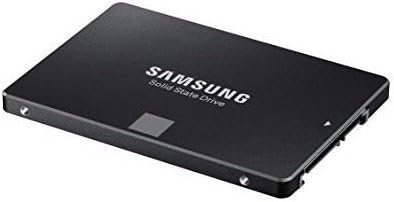
Ich schreibe hier aus der Sicht eines professionellen IT-Dienstleisters mit mittlerweile mehr als 20 Jahren Erfahrung und gefühlten 2.000 reparierten, umgerüsteten, aufgerüsteten und / oder neu installierten Systemen. Ich denke das ich einen sehr guten Überblick über die Performance verschiedener Systeme, ob Server , Notebooks, normale PC Arbeitsplätze etc. habe und weiß wo diese ihre jeweiligen Stärken / Schwächen besitzen.Eines kann man ganz klar feststellen:Wenn es in der Vergangenheit Performanceprobleme bei PC/MAC basierten Systemen gab, waren diese zu 95% auf die Festplatten zurückzuführen. Oft dann noch in Verbindung mit etwas fehlendem Arbeitsspeicher. Ich versuche diese Zusammenhänge mal hier etwas laienhaft und allgemein verständlich auszudrücken. Es ist nämlich meistens grundsätzlich völlig egal ob eine SSD mal 10 oder 50 Mbytes mehr in der Sekunde schreibt oder liest (Datentransferrate), das merkt man in der realen Nutzung des Gesamtgerätes kaum. Der Unterschied ist es, überhaupt eine SSD einem System zu benutzen. Und diesen Unterschied versuche ich mal hier mal mit einfachen Worten und Zahlenbeispielen zu erklären. Dieses Review ist sehr lang, weil Vieles erklärt wird.Wer sich die Erklärungen sparen möchte und bereits warum und wann eine SSD schneller als eine Festplatte ist, springt am besten direkt ans Ende zum Fazit.Warum wird ein PC durch eine SSD signifikant schneller ?Ein herkömmliches PC/MAC System besteht im Grunde, wenn wir hier zwecks Analyse des Datentransfers und Datenverarbeitung auf die hierfür wichtigen Teile reduzieren, aus nur 3 maßgeblichen Komponenten:1. Dem Prozessor (auch CPU genannt, das Gehirn das die Daten bearbeiten kann)2. Dem Arbeitsspeicher (auch RAM genannt, ist quasi so etwas wie eine Kreidetafel von der die CPU Daten für ihre Datenbearbeitung ablesen kann und auch Ergebnisse aus Teilberechnungen dran schreiben kann um sie kurzfristig verfügbar zu halten)3. Die Festplatte ( auch Harddisk genannt, ist ein Massenspeicher, auf dem endgültige Berechnungsergebnisse, aber auch weitere Massen-Daten wie Photos, Bilder, Programme etc. abgelegt sind, die die CPU gerade halt nicht braucht.Etwas zu den Geschwindigkeitsverhältnissen und den Abhängigkeiten dieser drei Komponenten:- Prozessoren sind schon seit Jahren sehr schnell und verfügen über ebenfalls eigene eingebaute Speicher ähnlich dem RAM, die jedoch verhältnismäßig klein dimensioniert sind und quasi ständig nachgefüttert werden müssen, damit weitergerechnet werden kann. Der in den Prozessoren integrierte Speicher ist vergleichsweise zum RAM Speicher und zum Festplatten Speicher sehr teuer in der Herstellung. Daher wurde dieser meist sehr klein gehalten, außer in extrem teuren Serverprozessoren (bspw. Intel XEON Serie). Zudem können die kleinen Speicher (Caches) in den Prozessoren keine Daten "behalten" wenn der PC ausgeschaltet wird. Sie dienen wirklich nur zur direkten Unterstützung des Prozessors und des direkten Rechenprozesses.- Arbeitsspeicher bietet von diesen drei Komponenten die zweit schnellste Speichermöglichkeit und hat sich im Laufe der letzten Jahre durchausin seiner Verarbeitungsgeschwindigkeit entwickelt. Dieser dient jedoch ebenfalls nicht zur finalen Speicherung der Daten oder zur längern Aufbewahrung von Daten, da auch der Arbeitsspeicher nach dem Ausschalten des PCs "leer" ist. Seine Hauptaufgabe ist es möglichst alle Daten die der Prozessor in den nächsten Momenten brauchen könnte vorzuhalten und im richtigen Moment an selbigen auszuliefern. Im Gegenzug werden auch Daten in den Arbeitsspeicher geladen, welche vielleicht in Kürze von anderen PC Komponenten (wie Grafikkarten oder andere Hardware) eventuell kurzfristig gebraucht werden könnten. Auch größere Teilberechnungen die der Prozessor vorgenommen hat und nicht mehr in seinen eigenen kleinen Speichern zwischenablegen kann, werden im RAM temporär platziert.- Die Festplatte, ist das einzige mechanisch arbeitende Element in dieser Dreier Konstellation und auch gleichzeitig das langsamste. Hier befinden sich magnetisch beschreibbare, rotierende Scheiben in einem Gehäuse, auf welchem die gesamten Massendaten des Computers in Form von Nullen und Einsen dauerhaft untergebracht sind. Daten auf einer Festplatte bleiben somit auch beständig erhalten, wenn der PC ausgeschaltet wird. Hier befinden sich alle Daten die der PC nicht "vergessen" darf. Das Betriebssystem, Photos, Bilder, Programme etc. etc. Auf den verhältnismäßig lahmen Festplatten speichert man deswegen die großen Datenmengen, weil es "billig" ist. Es gibt kaum eine andere Speichermöglichkeit die so viel Platz zu verhältnismäßig geringen Kosten anbietet und sich eignen würde in einem PC eingesetzt zu werden.Wie spielen also diese Komponenten nun zusammen ?Hier ein typisches Beispiel, das Laden eines Programmes unter Windows :1. Sie klicken mit ihrer Maus auf ein Programmsymbol ums selbiges zu starten.Die Verarbeitung beginnt mit dem Prozessor der ihre Klicks auswertet, weiß welches Programm Sie gestartet haben, aber selber eigentlich erst einmal nichts weiteres für Sie tun kann außer anderen Komponenten den Auftrag zu geben das entsprechende Programm zu besorgen. Dieser Aufrag landet in diesem Fall erst einmal im Arbeitsspeicher, da sich hier so einige Informationen befinden welche Teile des Windows Betriebssystems eigentlich auch noch benötigt werden um ihr gewünschtes Programm auszuführen. Wenn man Glück hat ist diese Windows Komponente aufgrund eines großen Arbeitsspeichers bereits mit geladen worden, wenn man Pech hat kommen diese Komponenten mit auf die Wunschliste zu den einzelnen Dateien des Programms die nachgeladen werden müssen. Ist die Wunschliste fertig gestellt, wird dieser quasi der Festplatte freundlich übergeben, mit der Bitte um "Anlieferung" dieser Dateien. Das können im Einzelfall schnell mal ein paar tausend Dateien sein inklusive der Windows Komponenten die da grad benötigt werden. Und da die irgendwo auf irgendwelcher der magnetischen Scheiben der Festplatte gespeichert sind, schaut die erst mal fein in ihrem eigenen Katalog nach wo das Zeug denn alles so steckt. Dann beginnen die Schreib-/Leseköpfe damit den Katalog abzuarbeiten. Da auch die gewünschten Daten meist niemals direkt "am Stück" hintereinander zu finden sind, springen die Köpfe also immer hin- und her solange bis alle Daten ausgelesen und an den Auftraggeber Arbeitsspeicher übermittelt wurden.Bis hierhin sind oft schon bereits viele Sekunden vergangen, in der Sie vor dem Rechner sitzen und sich quasi noch nichts gerührt hat.2. Sobald die notwendigen Daten sich im Arbeitsspeicher befinden, kann der Prozessor damit beginnen diese zu bearbeiten und ihr Programm auszuführen. Die Zusammenarbeit zwischen Arbeitsspeicher und CPU ist dabei verhältnismäßig gut und zügig. Ab diesem Zeitpunkt geht also alles relativ flott und sie könnten jetzt meist schon mit ihrem gestarteten Programm arbeiten. Abgesehen natürlich von den Fällen wo sie in ihrem gestarteten Programm bspw. ein Bild laden wollen, oder eine Programmfunktion aufrufen die bis dahin noch nicht mitgeladen wurde. Dann muss die ganze Kette rückwärts mit einer neuen Wunschliste für die lahme Festplatte zurück abgearbeitet werden. Das kann dauern ' gääähn . Bei älteren PC Systemen die schon viele Jahre Windows Updates 'ertragen' mussten, und deren Hardware scheinbar nicht mehr für die heutige Zeit gebaut scheint, kann das auch schon mal der Zeitpunkt sein um einen frischen Kaffee zu holen.Das was ich hier mal bildlich dargestellt habe, würde ich gerne mal mit ein paar Vergleichszahlen erläutern um die Verhältnismäßigkeit der einzelnen Komponenten untereinander, in Bezug auf Zugriffsgeschwindigkeit und Datentransfer Geschwindigkeit zu beschreiben.Wir lernen hier gerade einen neuen Begriff zusätzlich zur bisher besprochenen 'Datentransfer' (Lese-/Schreib)-Geschwindigkeit, auch Datendurchsatz genannt: ZugriffsgeschwindigkeitDie Zugriffsgeschwindigkeit gibt an, wie lange ein Speicher braucht bis er mir die ersten von mir angeforderten Daten liefern kann, nachdem ich ihm das Kommando dazu gegeben habe. Manchmal wird die Zugrifffsgeschwindigkeit auch als 'Latenz' bezeichnet. Es ist also nicht nur wichtig wie schnell ein Speichermedium die Daten rausrücken kann wenn es einmal damit begonnen hat, sondern auch wie lange es dauert bis es beginnt zu liefern. Und hier steckt die Magie einer SSD. Hier die angesprochenen Vergleichszahlen zu den drei Komponenten in Bezug auf ihre Datentransferrate und den Zugriffszeiten:Speicher die sich in der CPU befinden:1st lvl Cache:Datentransfergeschwindigkeit : 38 GByte/s Zugriffszeit : 1,2 ns2nd lvl Cache:Datentransfergeschwindigkeit : 18 GByte/s Zugriffszeit : 3,8 nsHauptspeicher (RAM):Datentransfergeschwindigkeit : 7 GByte/s Zugriffszeit : 72 nsFestplatte (HDD):Datentransfergeschwindigkeit : 90 MByte/s Zugriffszeit : 7,2 msTechnikaffine Vollprofis mögen mir verzeihen das ich mich hier an Zahlen eines Core2Duo 2,4 GHz, FSB 800, DDR2-800 Systems aus 2011 orientiert habe, welcher sicherlich nicht mehr Stand der Technik ist. Jedoch ist dieses zur Verdeutlichung des SSD Effektes völlig ausreichend und stellt die Verhältnisse immer noch sehr klar dar.Was man an den obigen Daten deutlich sehen kann, ist das die Speicher die sich in der CPU befinden (L1 und L2 Caches) sowohl vom Datentransfer als auch in der Zugriffszeit sehr schnell sind. (Die Einheit ns bei der Zugriffszeit bedeutet hier 'Nanosekunden'). Man sieht hier zwar das schon eine deutliche Diskrepanz zwischen der Geschwindigkeit des eingebauten Prozessor- Speichers (Cache) und dem Arbeitsspeicher (RAM) besteht ( Zugriffszeit 1,2ns zu 72ns, was fast den Faktor x60 bedeutet), aber es wird immerhin bei Datendurchsatz und der Zugriffsgeschwindigkeit noch mit denselben Einheiten gerechnet. (Gbyte/s = Gigabyte pro Sekunde und ns=Nanosekunden) . Eine Nanosekunde ist der ein milliardste Teil einer Sekunde, also = 0,000000001 Sekunden. Das ist fast genau die Zeit die der L1 Cache im Prozessor braucht um Daten an diesen zu liefern. Bis diese Daten aus dem Arbeitsspeicher gekommen sind dauert es immerhin schon ca. 60 mal länger (72ns). Das ist aber immer noch verdammt schnell. Und jetzt kommt das Problem : Muss ich die Daten von der Festplatte holen, muss ich mit einer Reaktionszeit selbiger von ca. 10 ms (= 10 Millisekunden) leben. Werden wir mit einer ganz anderen Einheit konfrontiert. Hier nochmal untereinander die Nanosekunde und die Millisekunde:0,000000001 (Nanosekunde)0,001 (Millisekunde)Eine Millisekunde ist also 1.000.000 (eine Million) mal langsamer als eine Nanosekunde. Vergleichen wir also mal die 72ns Zugriffsgeschwindigkeit des Arbeitsspeichers mit den 10ms der Festplatte, so erhalten wir einen Faktor von mal 138889 den der Arbeitsspeicher schneller ist im Zugriff auf die Daten als die Festplatte. Wenn Sie 10.000 kleine Dateien aus dem Arbeitsspeicher dem Prozessor zu Verfügung stellen müssten (gerechnet ohne die reine Übertragungszeit der Datenmengen selbst) würde das in Bezug auf eine Zugriffsverzögerung 10.000*0,000000072ns=0,00072 Sekunden dauern. Also immer noch ein 'Sekundenbruchteil'. Muss eine Festplatte wie im Beispiel diese Daten zusammenkratzen, braucht Sie alleine für das Zusammensuchen (ohne die Daten selber zu liefern) schon 10.000*10ms = 100 Sekunden. Das ist schon ein gewaltiger Unterschied und demonstriert die Verhältnissmäßigkeit in den Zugriffsgeschwindigkeiten zwischen Arbeitsspeicher und Festplatte. Das Laden von 10.000 verschiedenen Dateien von einer Festplatte ist übrigens gar nicht mal so weit hergeholt. Das entspricht bspw. dem typischen Arbeitsaufwand für eine Festplatte beim Laden ihres Betriebssystems, also wenn sie den PC oder MAC hochfahren.Und das was oben beschreiben ist, entspricht nur der Differenz in der Zugriffsgeschwindigkeit. Zudem kommt noch der Performanceunterschied in der eigentlichen Datentransferrate, also wieviel an Daten in einem bestimmten Zeitraum 'rübergeschaufelt' werden können. Hier ist der Unterschied zwischen Arbeitsspeicher zu Festplatte (7 Gbyte/s zu 90 Mbyte/s) auch noch gewaltig (ca. der Faktor 78) aber nichts im Vergleich zur Differenz der Zugriffszeiten.So und wer es durch das ganze technische Gewusel bis hierhin geschafft hat, erfährt jetzt warum eine SSD den meisten PCs und MACs einen Riesen Performance Vorsprung gibt:Ganz einfach. Wie wir oben herausgefunden haben ist eine Festplatte um ein unglaublich großen Faktor langsamer als das Arbeits-Verhältnis zwischen Arbeitsspeicher und Prozessorspeicher. Die Festplatte ist also der so genannte 'Bottleneck' (Flaschenhals) welcher immer dann wenn viele einzelne Dateien von ihr angefordert werden den Arbeitsspeicher und den Prozessor 'warten' lässt. Dieser Fall das 10.000 tausende kleiner Dateien geladen werden, kommt leider jedes Mal vor, alleine wenn Sie ihr Betriebssystem laden, also den PC einschalten. Deswegen dauert das ganze auch Minuten um Minuten. Je mehr Updates ihr PC mittlerweile für sein Betriebssystem bekommen hat, umso mehr verstreuen sich die Dateien auf der Festplatte und umso gewachsener ist die gesamte Anzahl einzelnen kleinen Dateien. Und das 'killt' über die Jahre fast immer die Gesamtperformance eines Rechners, selbst wenn der zum Kaufzeitpunkt ein 'Höllengerät' war.Sehr oft werden dann wegen solcher minutenlanger 'Booten des Betriebssystem' Orgien und einem sich teigig anfühlenden Gesamtverhalten des PCs unter seinem Betriebssystem ganze Rechnersysteme direkt ausgetauscht. Kann man machen. Muss man aber nicht. Sollte man auch nicht, vor allen Dingen wenn das neue PC System nicht über eine SSD verfügt. In diesen Fällen habe ich nämlich schon eindrucksvoll demonstrieren können das der alte mit einer SSD aufgerüstete Rechner bis zu 8 x schneller gebootet hat, als der brandneue Rechner, der aber wieder mit einer normalen (wenn auch schnelleren) Festplatte ausgerüstet war.Warum ist die SSD denn jetzt eigentlich schneller als jede Festplatte ?Weil Sie quasi fast so schnell ist wie ein Arbeitsspeicher (RAM) und keinerlei mechanische Verzögerung hat. D.h. sie ist sowohl im Datentransfer, als auch in der Zugriffsgeschwindigkeit dem normalen Arbeitsspeicher des PC/MAC sehr ähnlich, und kann damit tausendmal effizienter im Team und im Zusammenspiel von Arbeitsspeicher und Prozessor mitwirken. Eine SSD ist ein so genannter 'Flash' Speicher, was bedeutet das sie ihre Daten nicht wie ein normaler Arbeitsspeicher beim ausschalten des Computers 'verliert'. Somit eignet Sie sich auch erstmals zum Ersatz einer Festplatte die ihre Daten ja magnetisch (relativ) dauerhaft speichert.Ein simples Rechenbeispiel:Das weiter oben genannte PC System soll 'gebootet' werden. Das typische Windows besteht aus 2 Gigabyte an Dateien die in den Arbeitsspeicher geladen werden müssen und ca. 10.000 einzelnen Dateien.Für das obige PC System das die Daten von seiner Festplatte laden muss bedeutet dies:Für die reine Zugriffszeit zum Laden der Dateien: 10.000*10ms = 100 Sekunden.Zzgl. der Zeit zum Übertragen der Daten selbst, 2GB / 90Mbyte/s = ca. 22 Sekunden.Also in Summe ca. 122 Sekunden. Mit rund zwei Minuten ein typischer Bootvorgang.Rüsten wir das System jetzt auf eine SSD um, sieht die Rechnung ca. aus wie folgt :(Wir kalkulieren mit einer marktüblichen SSD mit Zugriffszeiten um die 0,1 ms und einer Datentransferrate von ca. 500 Mbyte/s. Der Fairheit halber (ältere PC Systeme können diese hohen Datenraten oft über ihren älteren internen BUS gar nicht abbilden, rechnen wir hier mit 30%,also mit 150 Mbyte/s )). Für die reine Zugriffszeit zum Laden der Dateien: 10.000*0,1ms = 1 Sekunde !!! Zzgl. der Zeit zum Übertragen der Daten selbst, 2GB / 150Mbyte/s = ca. 13 Sekunden. Also in Summe ca. 14 Sekunden. Das entspricht einem typischen Bootvorgang eines Betriebssystems mit SSD.Man erkennt hier deutlich das mit einer SSD das Hauptproblem, nämlich die Zugriffszeiten auf die vielen tausenden Einzeldateien durch den Einsatz einer SSD fast komplett eliminiert wurden. Wer das jetzt bis hierhin verstanden hat, weiß wo die Magie einer SSD liegt, was diese vermag zu leisten, und das es eigentlich fast schnuppe ist, welche Datentransferrate eine SSD letztendlich bietet. Für eine höhere Datentransferrate einer SSD viel Geld auszugeben lohnt sich maximal für ganz neue, hoch performante PCs / MACs mit den entsprechenden Bus Systemen, die diese Daten auch weitertransportieren können.FAZIT:Für ältere PCs sind die SAMSUNG Festplatten mit ihren in Relation zur Konkurrenz gesehenen, mittleren Datentransferraten und ihrem günstigen Preis völlig ausreichend. Zudem verfügen die Samsung SSD standardmäßig über eine mitgelieferte Software, mit deren Hilfe man das Originalbetriebssystem meist bequem von der alten Festplatte auf die SSD übertragen kann. Zudem sind SSDs durch die nicht vorhandene Mechanik im Gegensatz zu Festplatten völlig resistent gegen Schocks (gerade wichtig für den Notebookbetrieb unterwegs) und verbrauchen aus dem selben Grunde auch deutlich weniger Strom.Es gibt viele gute SSDs auf dem Markt von verschiedensten Herstellern, aber in Bezug auf Qualität, Performance, Lieferumfang und Preis-/Leistungsverhältnis kann ich aus vielen Jahren Erfahrung die SAMSUNG SSDs nur empfehlen. Ich habe insgesamt mittlerweile ca. 70-80 SSDs (meist SAMSUNG SSDs aus der EVO Serie) verbaut und hatte mit den SAMSUNGSs niemals Probleme oder Ausfälle.Ich hoffe das ich mit diesem etwas ausschweifenden Review einigen Leuten nahe bringen konnte was überhaupt genau der Vorteil einer SSD ist und wie dieser zu quantifizieren ist. Wenn euch dieses Review in seiner ausführlicheren Form Gefalle hat, klickt bitte unten auf'War diese Rezension hilfreich ?' '> JA