Some deliveries may take a little longer than usual due to regional shipping conditions.

DOWNLOAD THE APP


Customer Services
Copyright © 2025 Desertcart Holdings Limited
DOWNLOAD THE APP




🖨️ Print smarter, work faster, save bigger.
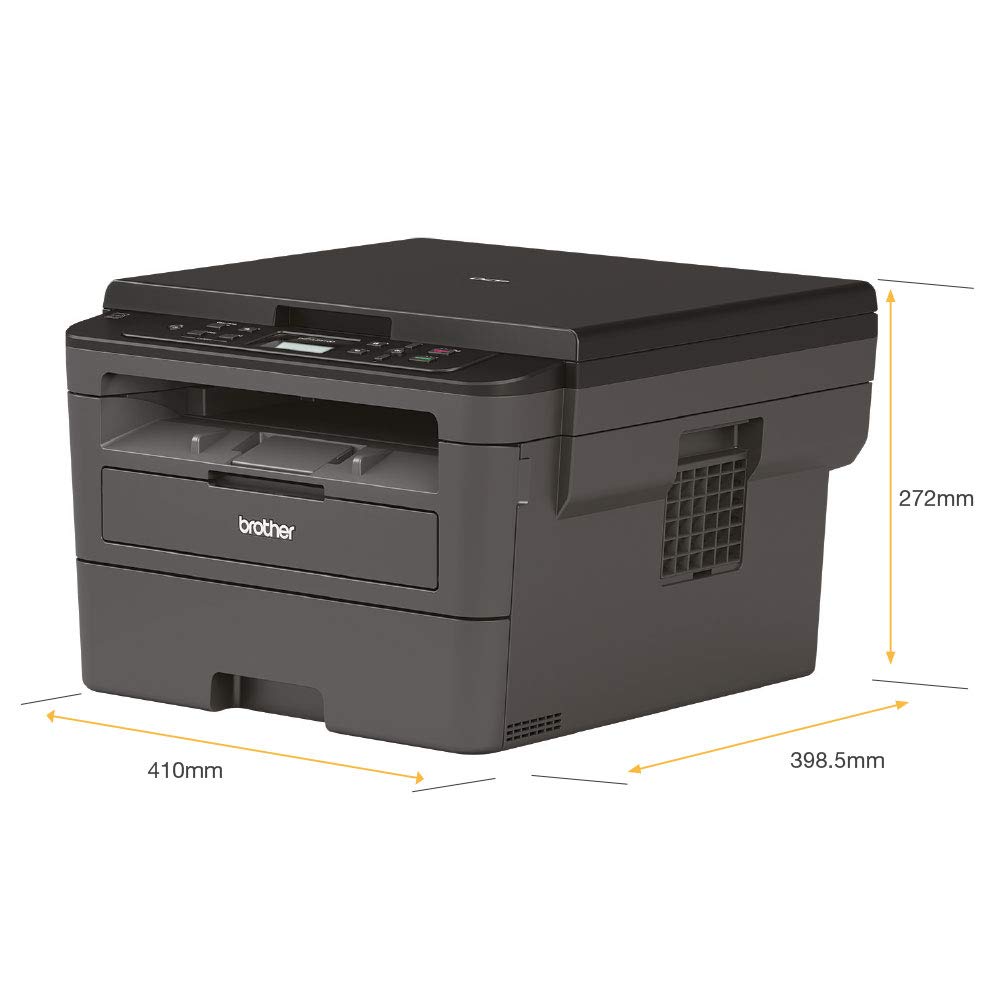
The Brother DCP-L2510D is a compact all-in-one mono laser printer designed for small offices and home workspaces. It delivers fast printing speeds of up to 30 pages per minute, supports automatic duplex (2-sided) printing, and features a large 250-sheet paper capacity to minimize downtime. With USB 2.0 connectivity and optional high-yield toners, it offers a cost-effective, efficient solution for professional-quality printing, scanning, and copying.


| Maximum Supported Paper Size | A4 |
| Power consumption | 440 Watts |
| Included components | Power supply cord, Quick setup guide, Warranty, Device, Driver software for Windows, User Drum, Consumables |
| Print media | Paper (plain) |
| Scanner type | Flatbed |
| Max input sheet capacity | 250 |
| Max copy speed (black and white) | 3E+1 ppm |
| Compatible devices | PC |
| Sheet size | A4 |
| Maximum black and white print resolution | 1200 dpi |
| Warranty type | limited |
| Colour depth | 1 bpp |
| Dual-sided printing | Yes |
| Maximum copies per run | 99 |
| Wattage | 440 watts |
| Product Dimensions | 15.67 x 16.14 x 10.71 cm; 10.3 kg |
| Batteries | 1 Product Specific batteries required. |
| Item model number | DCP-L2510D |
| Manufacturer | BROTHER |
| Form Factor | Copy, Scan |
| Processor Count | 1 |
| Number of USB 2.0 Ports | 1 |
| Power Source | AC 220-240v, 50/60hz |
| Hardware Platform | PC |
| Operating System | Windows, Mac, Linux |
| Are Batteries Included | No |
| Lithium Battery Energy Content | 4.9 Watt Hours |
| Lithium Battery Packaging | Batteries contained in equipment |
| Lithium Battery Weight | 0.9 Grams |
| Item Weight | 10.3 kg |
| Guaranteed software updates until | unknown |
K**L
Lightweight Great Doc Printer! 1200x1200 DPI, usable immediately just after connecting to WIFI
This is for HL-L2445DW printer. It's surprisingly light, feels way lighter than my Canon TS9xxx and TS8xxx inkjet. It's also in a perfectly compact size. To start with, I just need to remove all protection tapes, put in toner and paper, plug in the power cable, connect to Wifi using the pathetic few buttons and the tiny single line display, it's all up and running.It's also super fast. Didn't time it exactly but feels like all the claims in the spec are legit, as well as double-side printing (duplex). This is night and day comparing to inkjet.After switching on, it falls into deep sleep in about half a minute, and it wakes up immediately if I need to print anything. This comes in a benefit of energy saving. When its switched on, its energy consumption shoots to over 900W for a fraction of a second, then down to below 100, and pulse to over 600W every few seconds, only for a fraction of a second only each time. Then it falls to Sleep in about 15 seconds staying at about 2.3W, in another 15 seconds into deep sleep staying at 0.3W. When printing, the power pattern is similar as switching on, while during printing it stays at 300-over 600W. Then the above sleep cycle start kicking in again. Pretty efficient for how fast it gets back to power saving.The key feature catching my eye is its 1200x1200 dpi printing. To be fair, this is a document printer and we should never expect professional photo printing quality even on colour laser printers. I'm just doing the tests to see how its resolution look like, performance likely for some docs with some inline graphics.Document printing in text is as crisp and contrasting as usual laser printer.Included some test print samples and doesn't seems any settings allow me to lower its dpi, or whether its just a matter of detail dithering only? I didn't examine laser printers so I'm not sure how a normal 600dpi printing looks like or comparing. The hair printing sample is actually a snippet of a full A4 print of a photo taken by iPhone. We can see strips across the printing, however, it looks like the strips are more prominent in fine/best mode regardless of using the App or AirPrint. However as I mentioned, there doesn't seem any difference in resolution no matter which mode using.For your comparison, also include another printing sample, which is the 1st full res photo of this printer listing, which is at 1500x1048 pixels only. Printed on full page A4 and take some close up of the details that you may compare with your printers.To use the app or AirPrint or other methods? The App only allows print from files or photo library. If you need to print directly from any other iOS apps, the only way is still via AirPrint. Not sure about Windows and Android, guess more users will share soon. One of the feature to use the app, maybe to check the toner levels. Not sure if it's accurate or not. If the inbox toner is 700 pages capacity, it seems I've used up more than 10%, but I've definitely not yet printed more than 70 pages so far, maybe 30 only. Maybe those A4 graphic prints consumed a lot more than text prints. Will see how it goes in the long run.Just a little tip, if you don't wanna dust it very frequently and keeping it dust free, especially the rollers required to roll the paper back in for duplex printing, I stick a plastic file on top of it. It still works perfectly printing single and double sides, while keeping the printer output area dust-free.Update 20240331:The more I use, one issue needs to manage own expectation when using as document photocopying. I have other printer scanner scanning text docs or music scores, no matter how high contrast B&W (from eg histogram), printing on this laser printer will still be rendered as if graphics and resulting in dithering edges, ie losing all sharpness of docs and music scores. In this case, I still print from inkjet so the original sharpness can be replicated.
P**R
Excellent Printer and Scanner - Recommended
I recommend this as a printer and a scanner. I found it easy to set up and easy to use. It's fast for printing and very quiet in use.I'm an occasional printer user. I might do a batch today and not do any printing for several weeks. Inkjet printing had become very costly and frustrating because of dried out cartridges due to the occasional use nature of my printing.So I've moved to LaserJet to try to reduce my overall costs. While the upfront printer cost was a little bit higher than an inkjet, at the moment it looks like my overall cost per page over time ishould be much lower.So I'm very happy with this as a printing solution for me. The printer is a little heavier and larger than the inkja that it replaced but it's still quite tidy and manageable.Paper management also seems really good. It's got a nice large paper tray.It's very fast for printing and also very quiet - a huge improvement over inkjet.Scanning capabilities also very good.I connected this and I'm using it wirelessly I found it easy to set up and I've had no connectivity issues since.
D**D
Consider a different Brother printer scanner - DCP-L2530DW
I bought this to replace an existing Brother DCP-L2510D which no longer works properly.However to get this to work requires a wired connection - obviously possible since we had the previous printer working. However for various reasons it would be very helpful to operate this printer in a new location further from the computer, possibly in a different room. This can be achieved either by using a long cable [untidy-difficult to install] or by using powerline adapters, which we already use, or by using a usb-wifi print server - to enable this to run wirelessly.Looking at the options it seems that the DCP-L2530DW model is very similar, but also supports a wifi connection. It may be more convenient to return this printer, and order a DCP-L2530DW instead. The extra cost is less than the price of the cheapest usb-wifi print server, and it could be easier to configure.It could be a lot less hassle to do the replacement, rather than trying to make sure that a print server works.Even though the printer this would be intended to replace has faults, it has served well for several years, and has been very good for bulk printing, and works with our Apple computers - now running Ventura - but it has worked with the previous Macos versions from Catalina on. I think it should also work with earlier versions, such as El Capitan, though I can't be absolutely sure. It is great for two sided copying.It should also work well for scanning, though presumably only in monochrome. I've not used that feature for some time, and we have a colour printer scanner which is used for scanning.There are obviously costs associated with the toner cartridges, but over all we have found these to be reasonable, and there are cheap choices for cartridges available. For monochrome printing this printer type is much cheaper than an equivalent ink jet printer with separate colour cartridges, and note that many ink jet colour printers will often not print if there is an issue with any of the colour cartridges - not even in black and white. The speed of printing and the ability to use double sided printing make this printer much more convenient than using ink-jet printers.When the toner "runs out" the cartridge can/should be replaced, though it is often possible to extend the life of a cartridge by removing it, shaking it, and then replacing it back into the printer. This is slightly messy, and perhaps should be done in a location where any toner "dust" won't matter - maybe outside. Besides being more economical to use the cartridges in this way, it also helps if the cartridge seems to run out over a weekend, and a print run is needed. There is little warning that the cartridges are about to run out, so it is a good idea to keep a supply in, once one has estimated how long they will last. Usually a couple of cartridges will last a year or two.As I haven't even opened the box yet I can only base my evaluation of performance and ease of installation on the unit we want to replace. As that has given good service I have given a star rating based on that.I have only given this 2 stars for technical support. The reason for this is that the faults which have developed are perhaps fixable, but the cost of repair would be more than the cost of a new unit. There are charges for transport, then charges for evaluation of the problem, and finally a charge for remedy. Taken altogether, it is cheaper to buy a new unit than try to get a printer/scanner with a fault repaired.This only applies to faults which are largely mechanical in nature. The support for software issues seems to be good, and software updates have generally been easy to apply with no major problems.Check the configuration and connection options for any similar printer before ordering. Some are still available with Fax options - though Fax is largely not used nowadays. Copying is possible with some units - and that is usually effective - though monochrome only. Probably the minimum to be useful now for most people will be a wireless printer with additionally a wired connection. Also, where a scanner is included in the unit, check that it is possible to scan and return a file back to the host computer via a network. Some printer scanners may not work so well on networks with several different computers attached, so it is necessary to check the detailed specs.Additional comments. Getting the scanner to work with MacOS seems to require the download of the ICA driver - which may take some searching of the Brother site. However, it does work, and will work with Preview - and somewhat surprisingly, the scans are in colour.Having considered the option of returning this one and replacing it with a wireless compatible model, I now have it working and in a convenient location, so it will stay. If there are any constraints on size and location, then consider one of the other models with more connectivity, such as wireless or network connections, but if wired connections are feasible, then this is a good printer to have. I would rate this as 5 stars if wired connections are an option. If more flexibility is required, or wired connections are not possible, then think again.
Trustpilot
5 days ago
2 weeks ago